Docs for Redactwizard v. 1.0.0 - 1.0.2 - Legacy product

Learn more about the key features of Redactwizard.

About

This documentation describes the main features, workflows, and configuration options of Redactwizard. Redactwizard is a single-user desktop application for Windows 10/11. It is a support tool and does not replace a professional audit of the results by the user themselves. The software focuses on secure document processing, redaction, and pseudonymization workflows.


New Features & Interface Insights (v1.0.2)

Version 1.0.2 introduces enhanced user interfaces, optimized processing workflows, and visual detail improvements. Below you will find the interactive screenshot overview of all new features.

Screenshot 1
v1.0.2
Screenshot 3
v1.0.2
Screenshot 4
v1.0.2
Screenshot 5
v1.0.2
Screenshot 6
v1.0.2
Screenshot 7
v1.0.2
Screenshot 8
v1.0.2
Screenshot 9
v1.0.2
Screenshot 10
v1.0.2
Screenshot 11
v1.0.2
Screenshot 12
v1.0.2
Screenshot 13
v1.0.2
Screenshot 14
v1.0.2
Screenshot 15
v1.0.2
Screenshot 16
v1.0.2
Screenshot 17
v1.0.2
Screenshot 18
v1.0.2
Screenshot 19
v1.0.2
Screenshot 20
v1.0.2
Screenshot 21
v1.0.2
Screenshot 22
v1.0.2
Screenshot 23
v1.0.2
Screenshot 24
v1.0.2
Screenshot 25
v1.0.2
Screenshot 26
v1.0.2
Screenshot 27
v1.0.2
Screenshot 28
v1.0.2
Screenshot 29
v1.0.2
Screenshot 30
v1.0.2

Installation

Download the latest version and run the installer. No internet connection is required for installation; a temporary internet connection is only needed for license activation, unless you choose offline validation.

redactwiz.exe

Alternatively, double-click the installation file.

  • Windows MSI Installer
  • Windows NSIS Installer
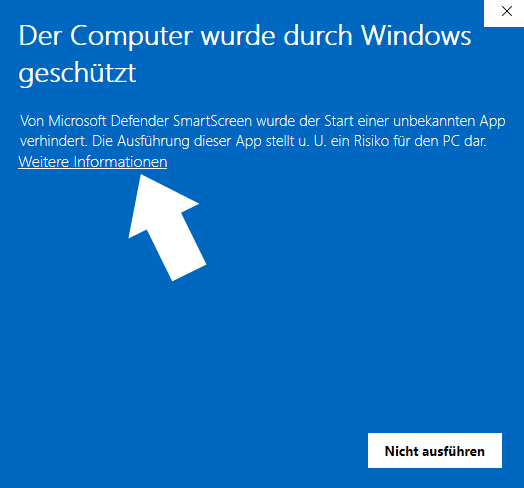
Windows SmartScreen 1
Step 1: After starting the installation, the blue Windows protection screen appears. Please click on the link "More info".
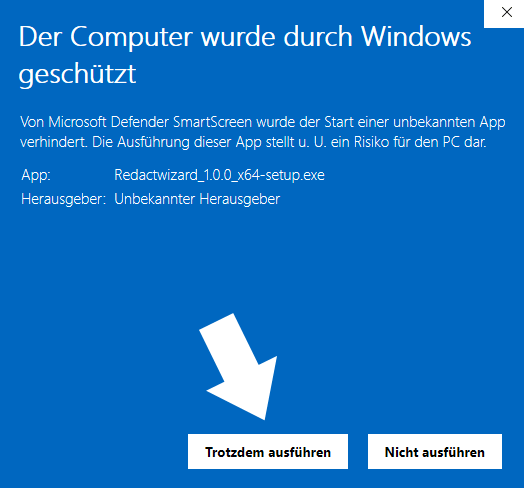
Windows SmartScreen 2
Step 2: The "Run anyway" button now appears at the bottom right. Click it to proceed with the installation.
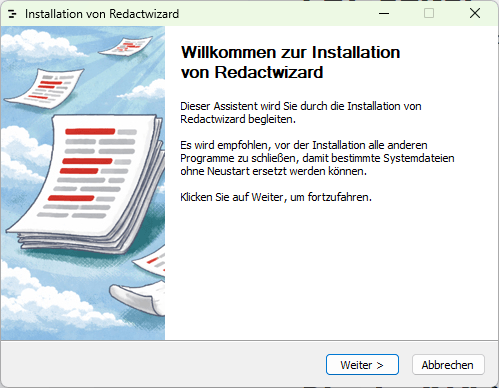
Screenshot 41
Step 3: Follow the instructions of the setup wizard.

License Activation

Activate the software using your license key.

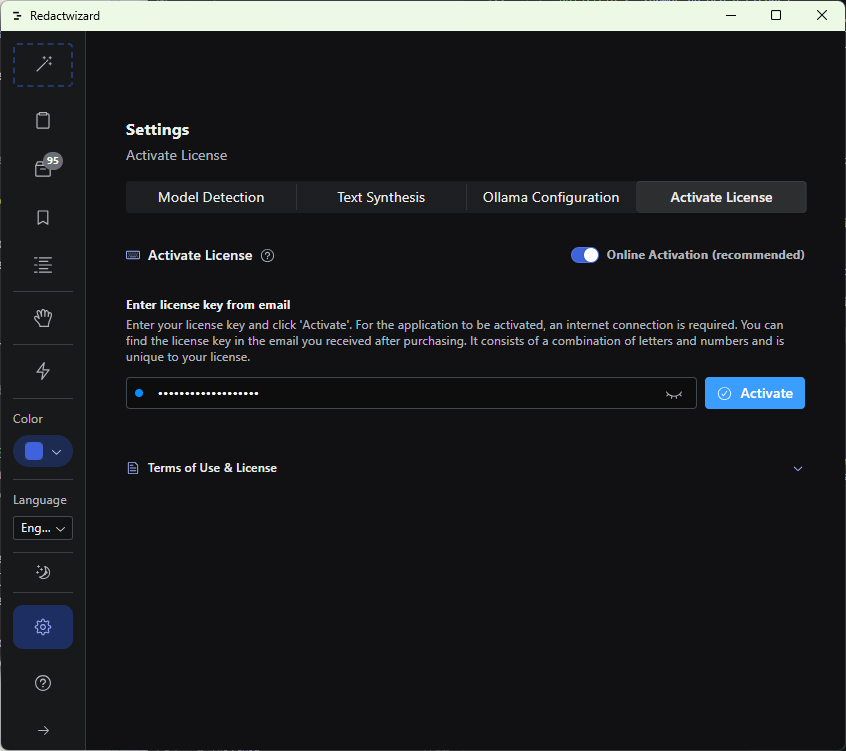
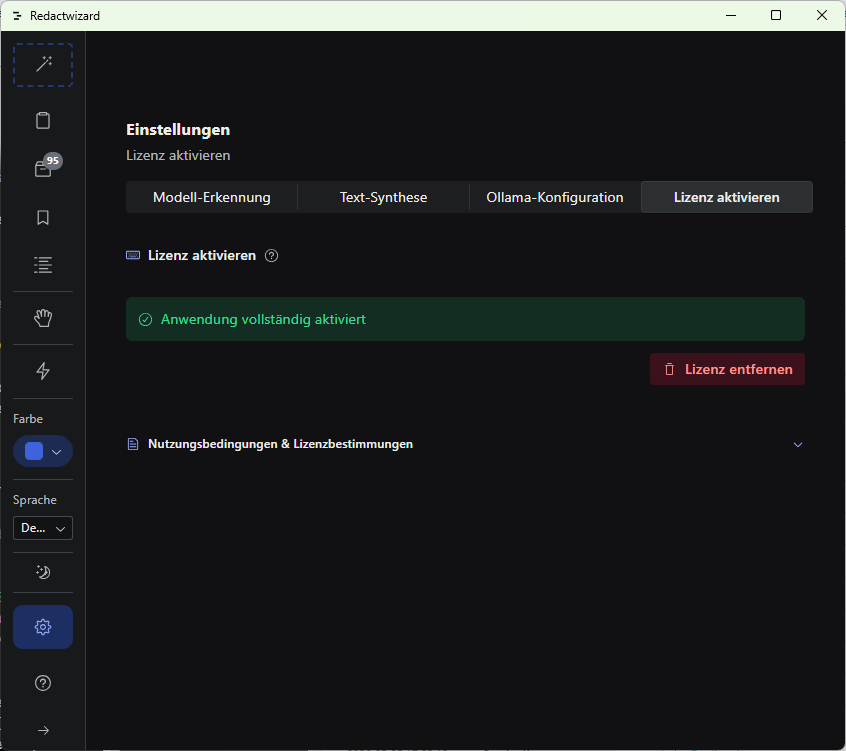
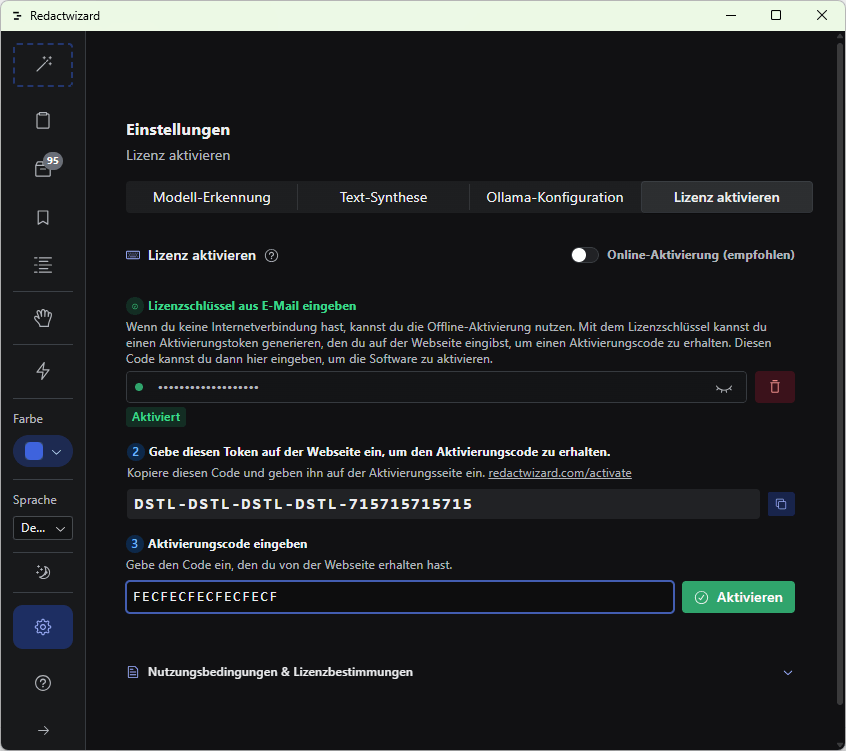
Settings → License → Activate
Screenshot 55
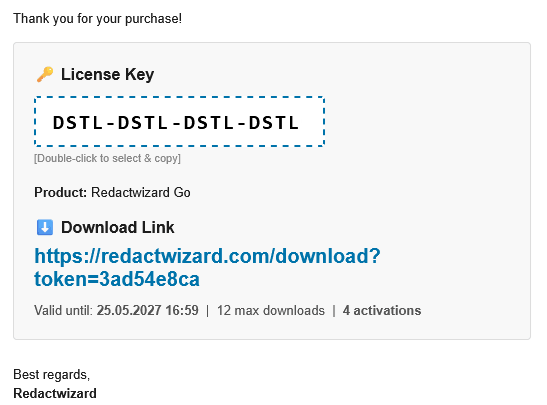
Copy the license key from the email; it is located above the ESD link.
Online Activation
Screenshot 58
Paste the license key into the field. Activate the software with your license key. An active internet connection is required until the application is activated.
Screenshot 52
The application is activated. You can re-activate the application with the license key at any time as long as the installation remains intact.
Offline Activation (Air-Gapped Environments)
Screenshot 56
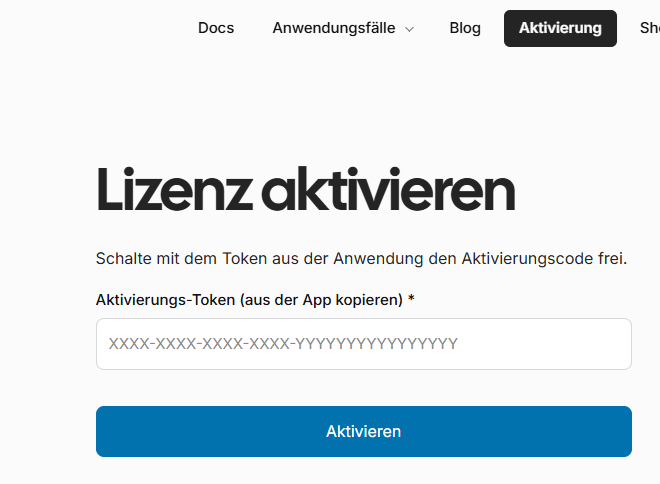
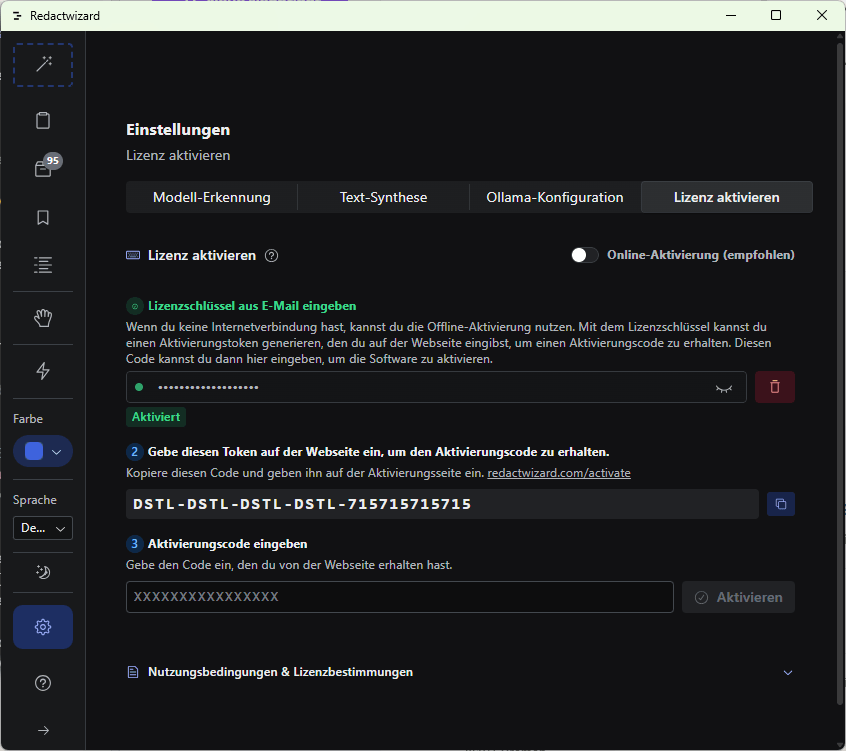
Disable online activation using the toggle switch. As soon as you enter the license key, a token tied to your desktop computer is generated. Copy this using the icon. Then click the link https://redactwizard.com/activate
Screenshot 54
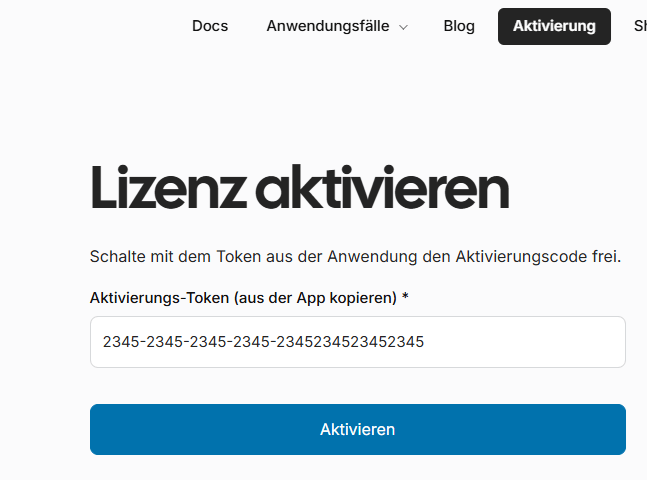
Paste the copied activation token into the form field on the website.
Screenshot 59
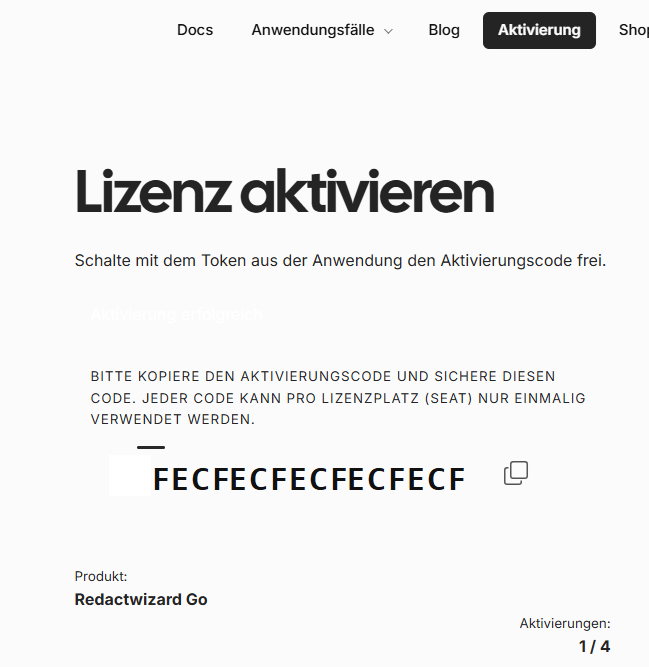
Click "Activate" to generate the activation code. Each activation code is intended for one seat (workstation).
Screenshot 53
Copy the activation code using the icon.
Screenshot 57
Paste the activation code into the form inside the application and activate the software.
Screenshot 52
The application is activated. You can re-activate the application with the key at any time as long as the installation remains intact.

Quick Start

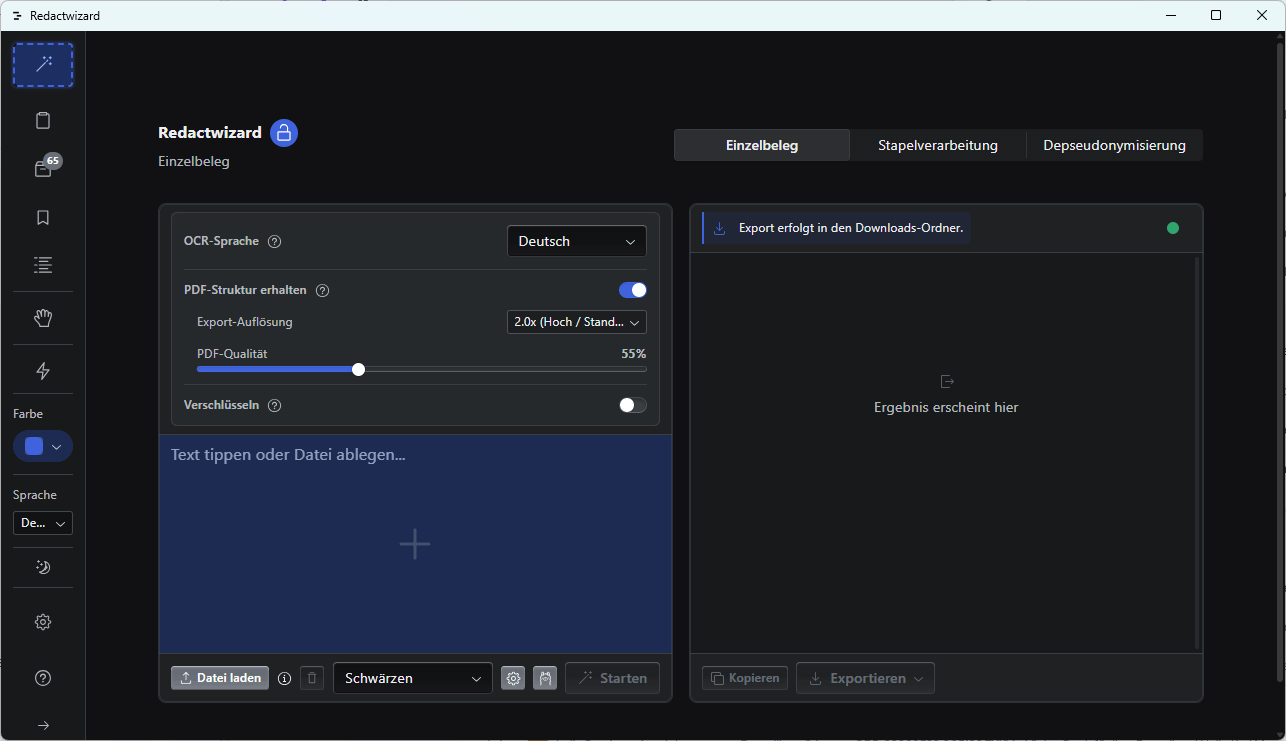
1. Single-Document Mode: Switch to Single-Document Mode.
Screenshot 1
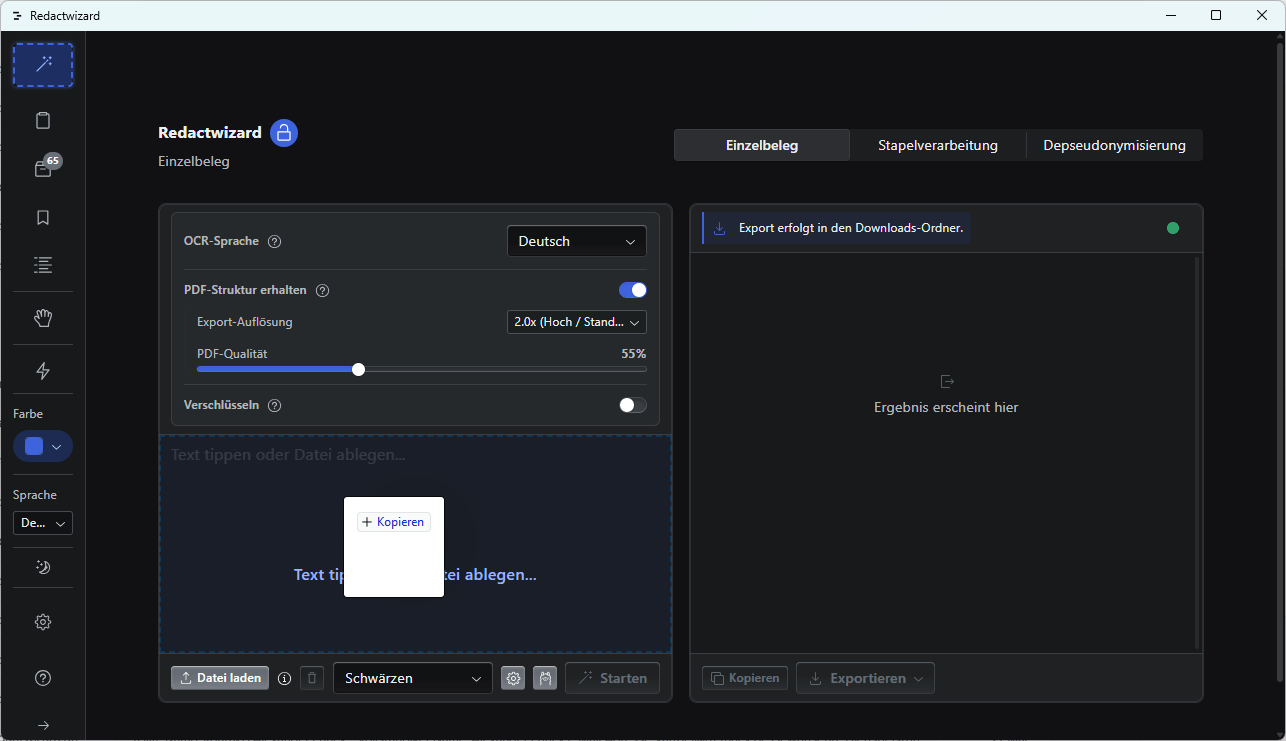
2. Import Document: Import your PDF or text files.
Screenshot 2
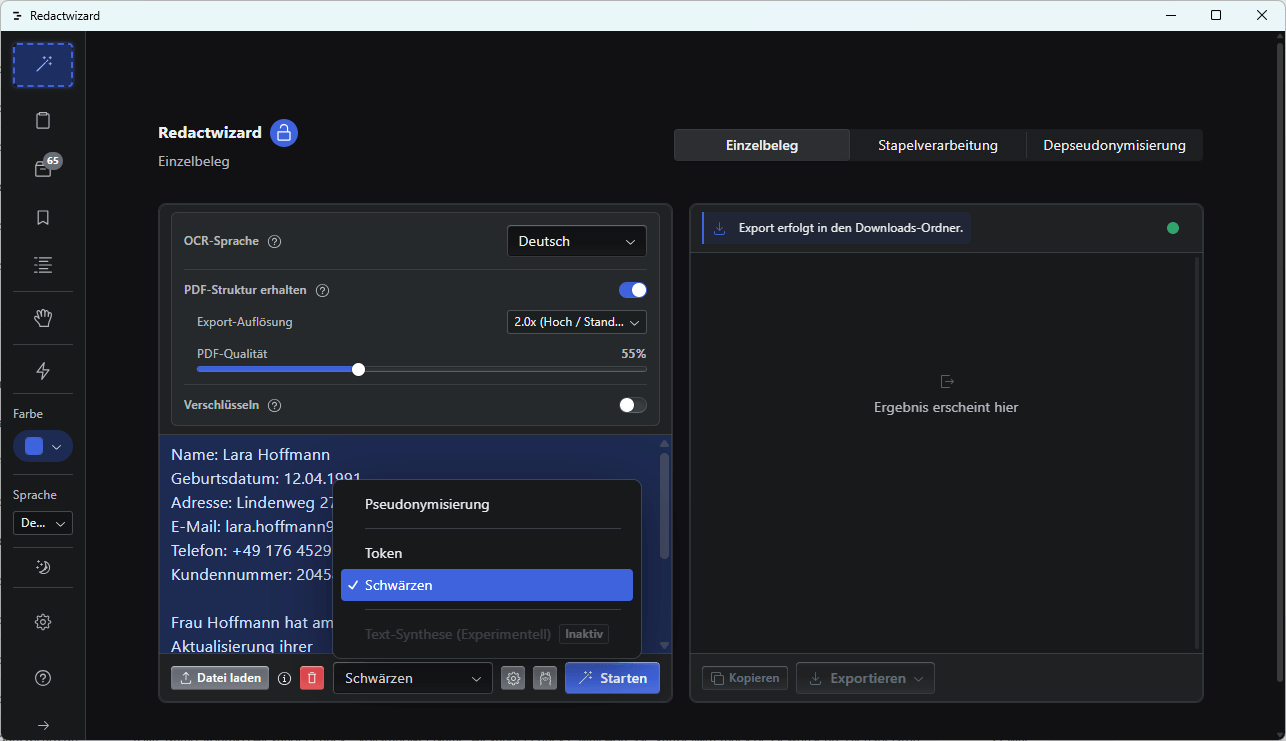
3. Select Redaction Mode: Select Redact from the selection list.
Screenshot 3
4. Start Analysis: Start processing. The system automatically detects sensitive content.
Screenshot 4
5. Export: Save the processed document using the export function.
Screenshot 7

Redaction

Permanently removes or conceals sensitive information.

  • Automatic detection
  • Manual selection
  • Multi-page support
Screenshot 4
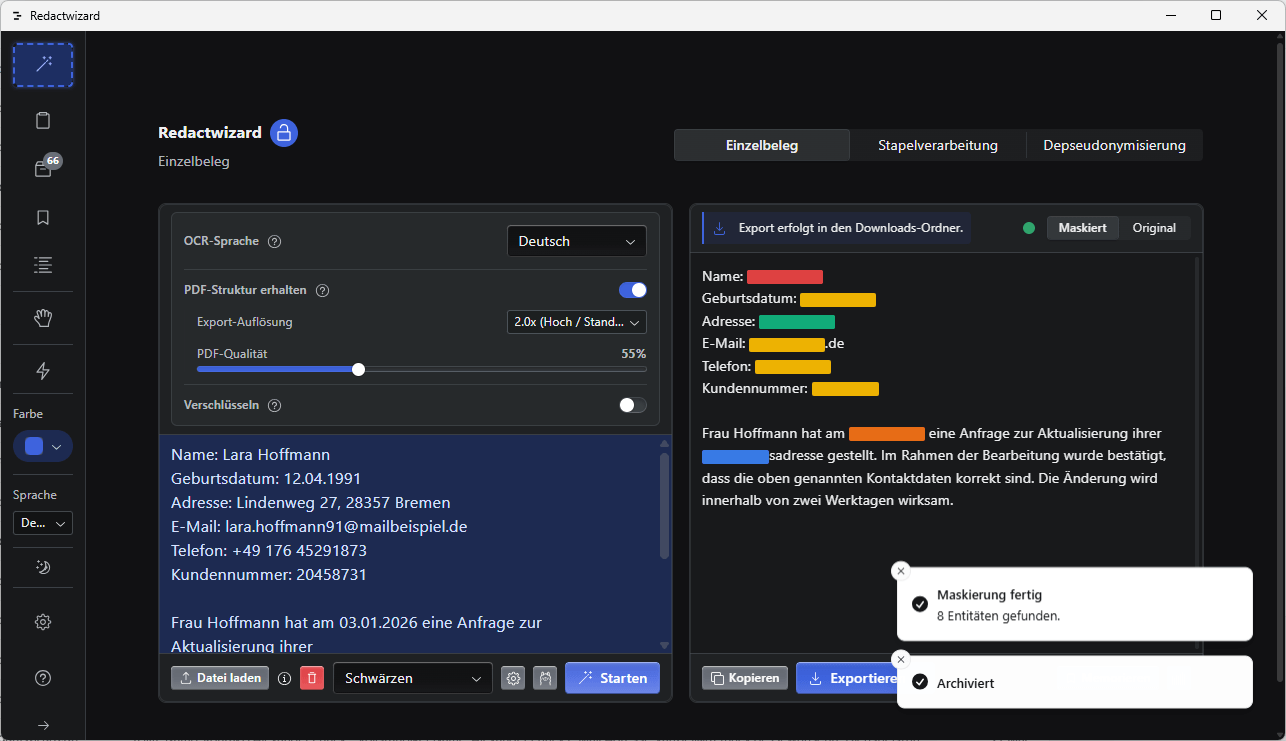
The bars are only color-marked within the UI interface, not in the exported document.
Screenshot 5
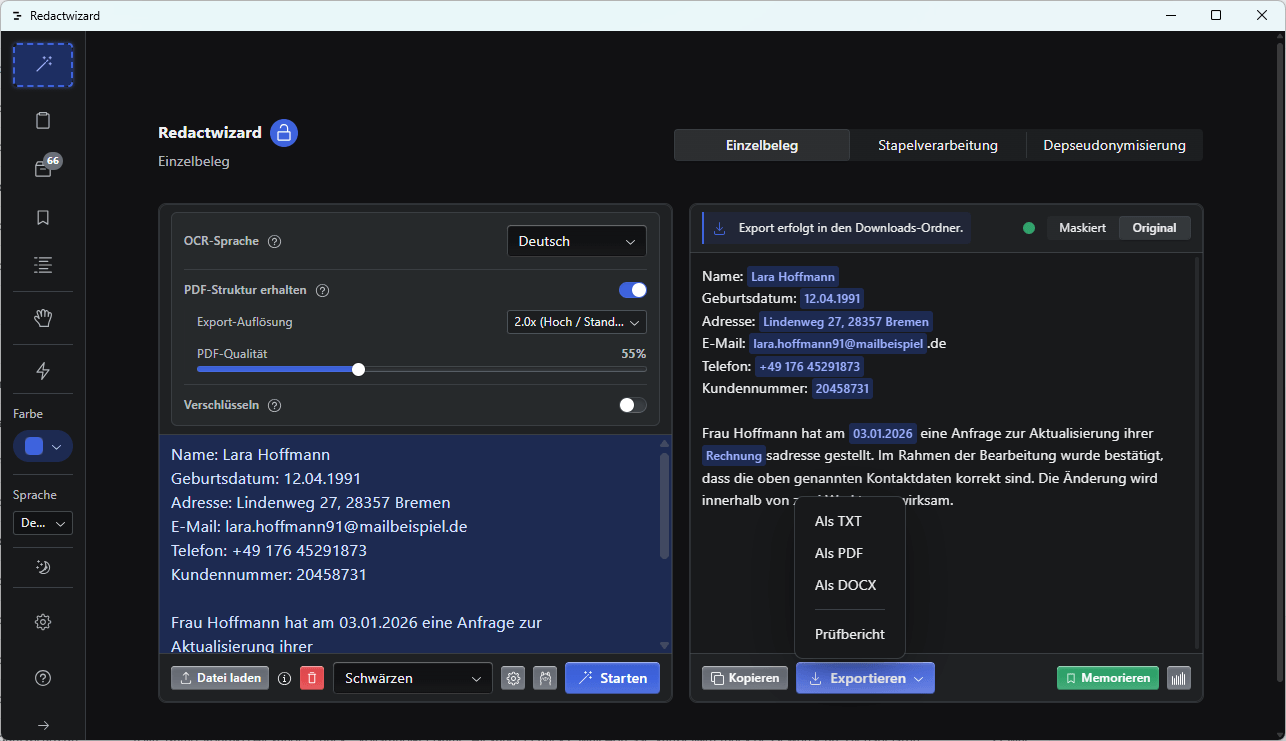
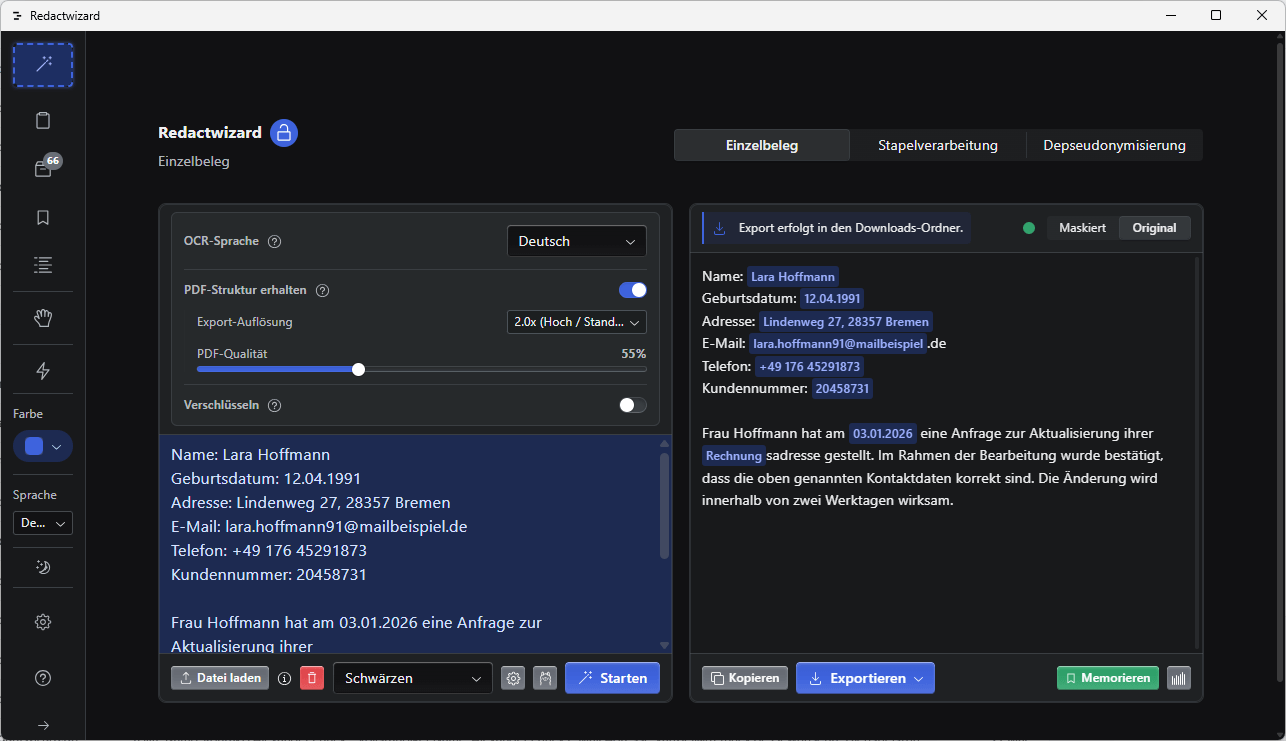
Select the comparison tab to compare the redacted text with the original.
Screenshot 10
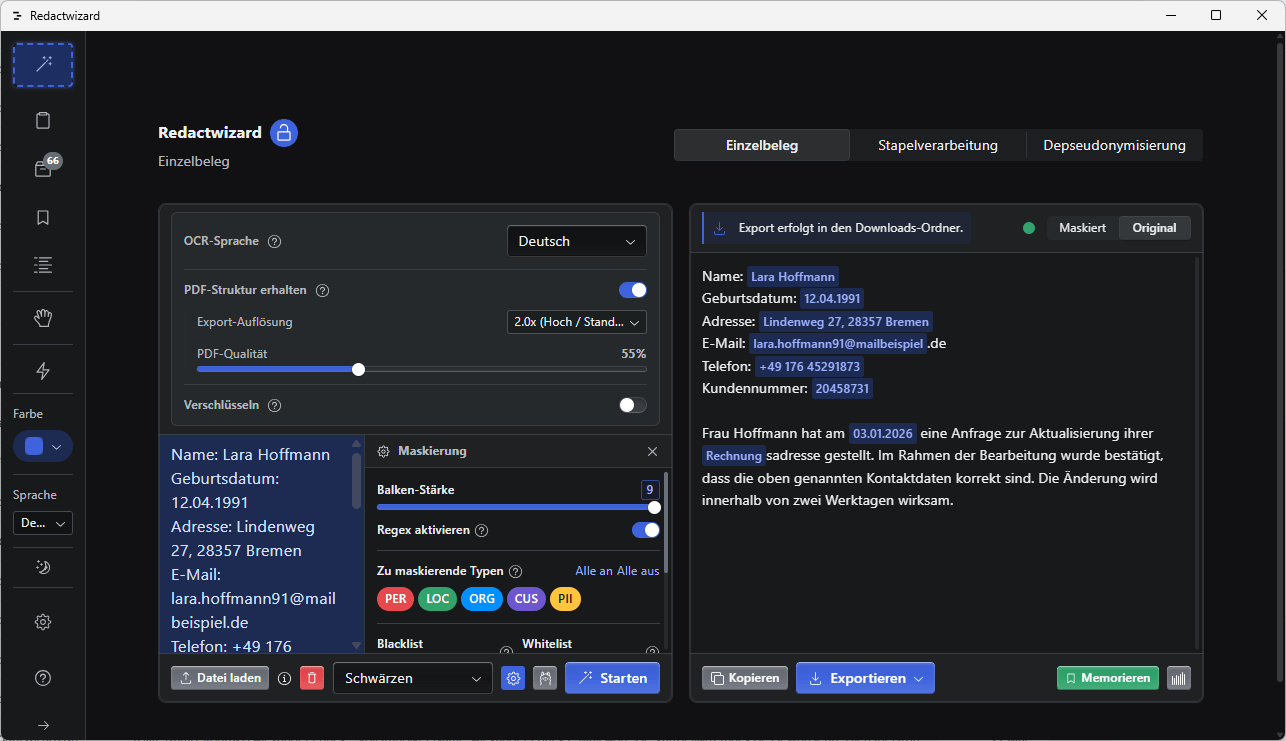
You can configure the length of the redaction bars in the quick settings. The following applies to PDF export: In PDF mode, the canvas is overlaid with black bars. You can choose whether the text should be newly generated (making it usable without OCR in other applications) or if the canvas should be redrawn while preserving its structure. When redrawn, the document can only be imported into downstream applications using OCR detection. For printouts, sharing, or court submissions, structure-preserving canvas redrawing is the preferred choice.

Pseudonymization

Replaces personal data with consistent placeholders.

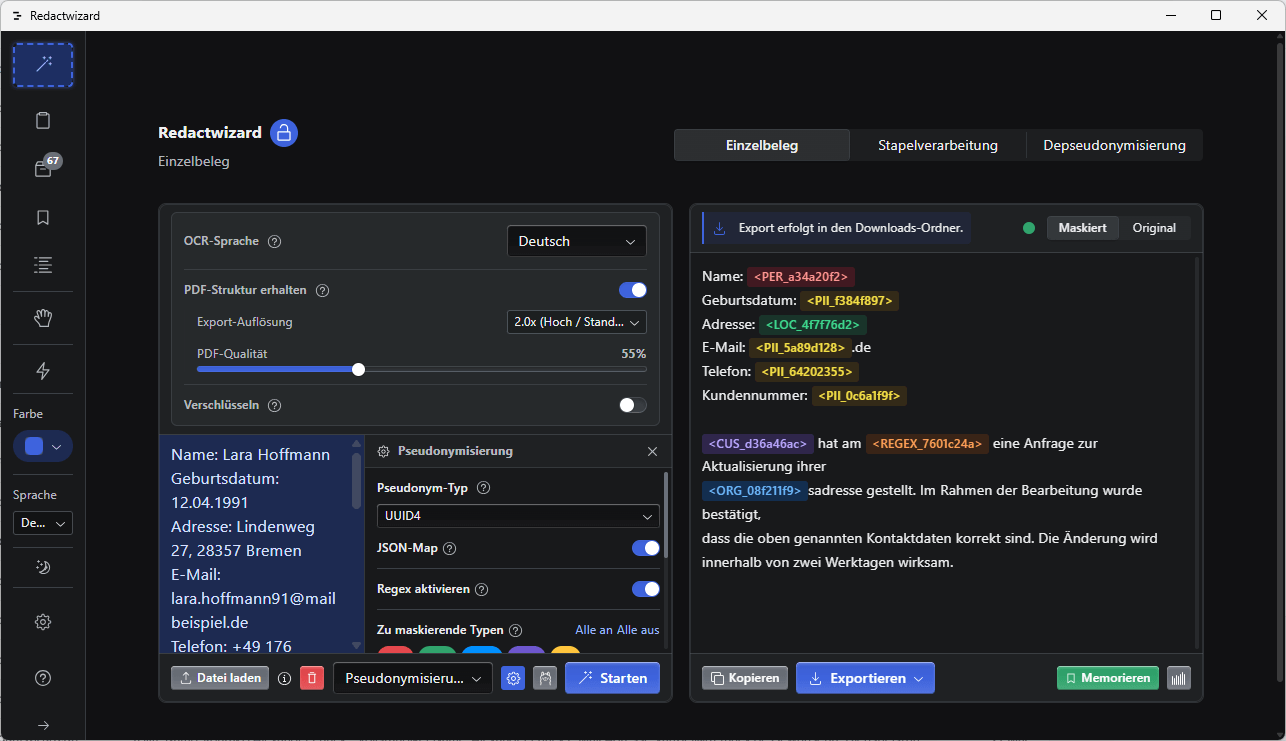
John Doe becomes PER_f4eb16e6
Screenshot 11
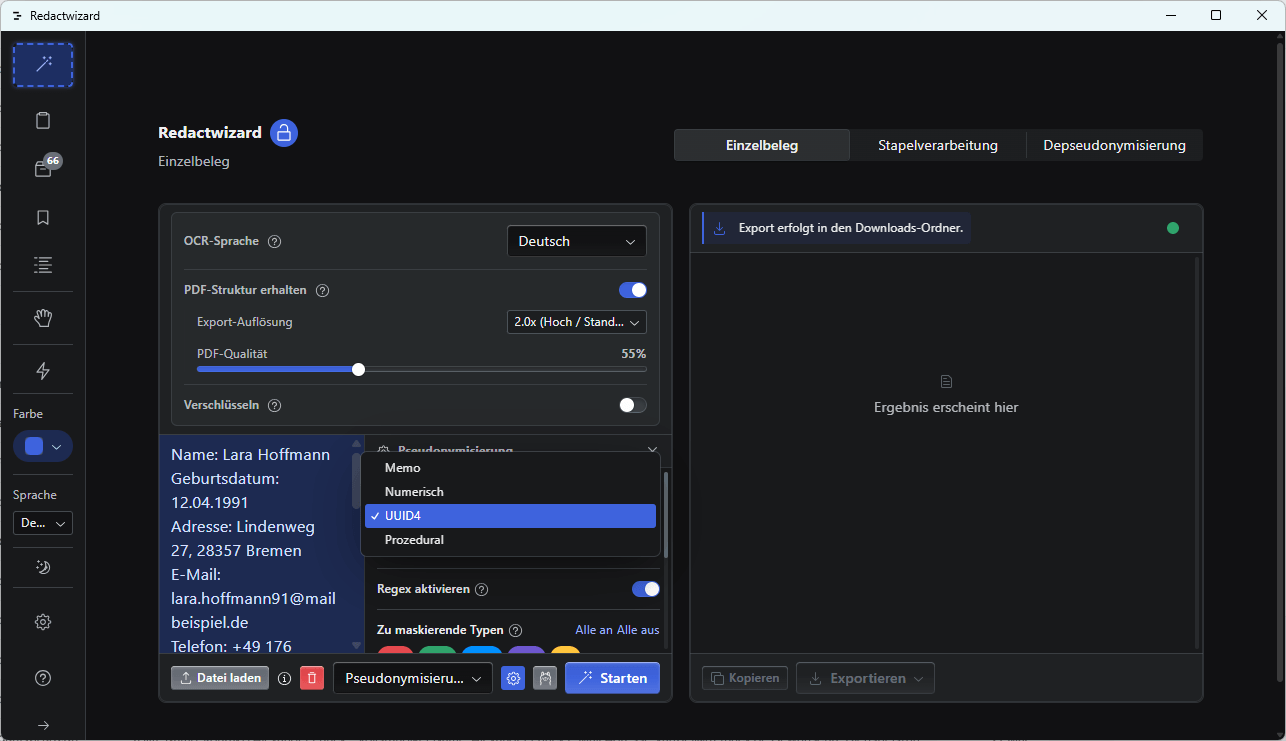
Select the pseudonymization mode in the drop-down menu. Open quick settings and choose your preferred masking style (Memo-Label, UUID4 Hashes, Numeric).
Screenshot 12
Click Start and let the AI mask your text.
Screenshot 6
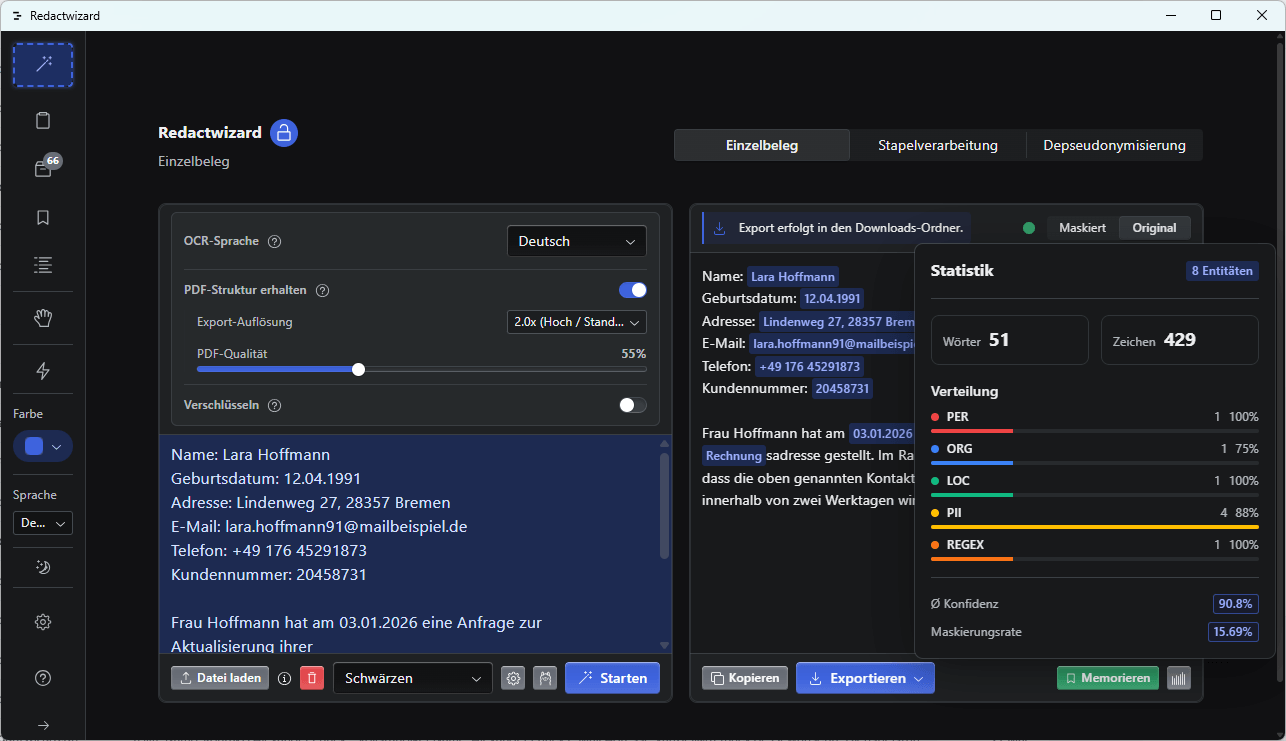
After processing, you can check the statistics. Two documents are always generated upon export: the pseudonymized text and the JSON mapping file containing entity-key pairs.

PDF Settings

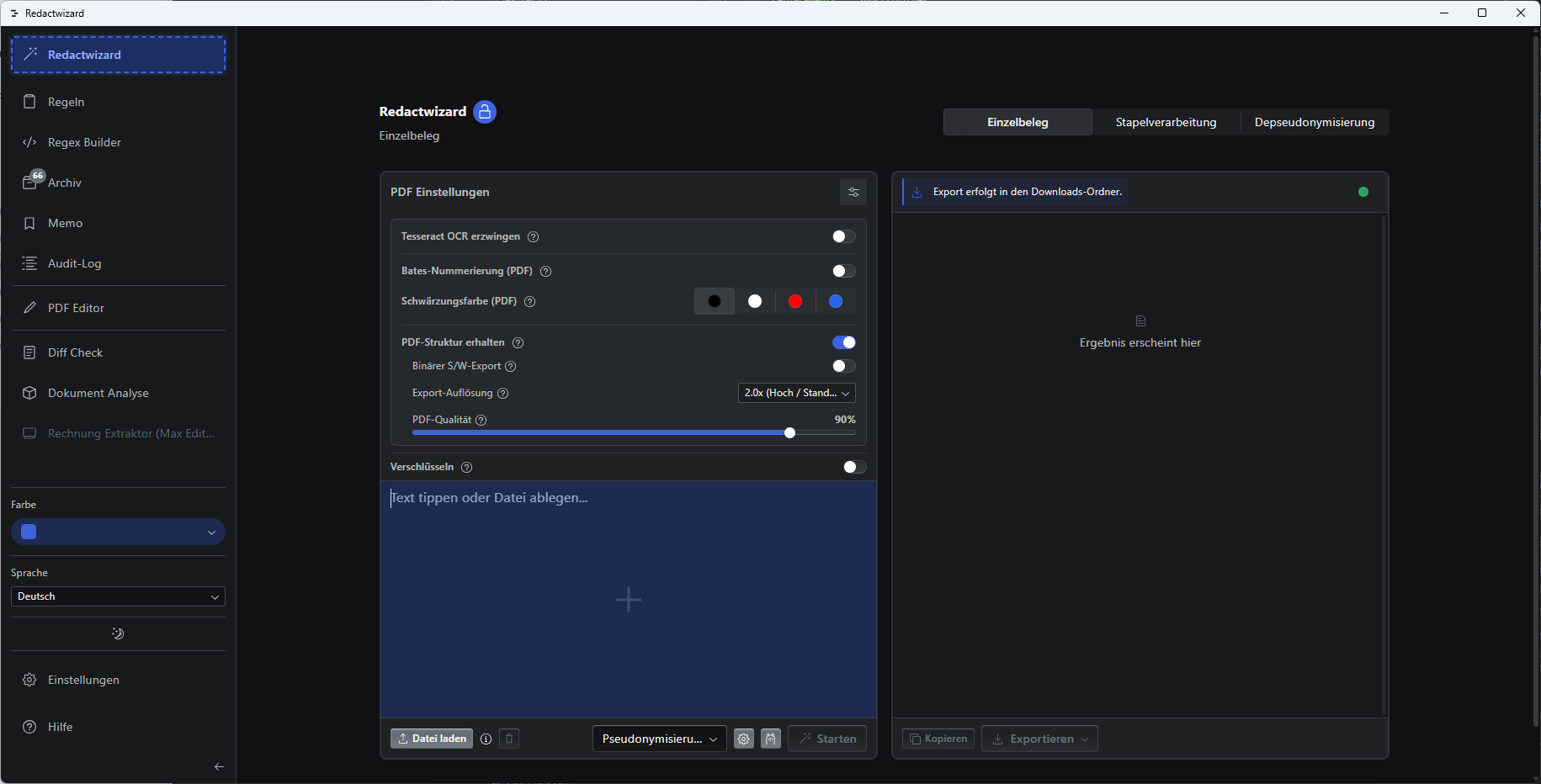
You can import scanned PDFs using the OCR option. Windows Native OCR is enabled by default but can be disabled in favor of Tesseract OCR. Note, however, that OCR detection is based on locally executed, quantized Tesseract models. The recognition rate heavily depends on image quality, orientation (rotation), and the complexity of the source material. Therefore, importing handwritten documents is not recommended.

To preserve the PDF structure, enable the option Preserve PDF structure. This ensures that the layout remains fully intact even in redacted or pseudonymized documents. If the source file already contains copyable text, an OCR import will be required for further processing after export. However, for printing or sharing—such as with court authorities or clients—this limitation is generally irrelevant.

Bates Stamping: Adds audit-proof identifiers for legally compliant indexing. Consisting of a prefix and a sequential counter with leading zeros, every page is uniquely referenceable.
Screenshot 87
Enable structure-preserving PDF mode.

Batch Mode

Automatically process multiple documents in batch.

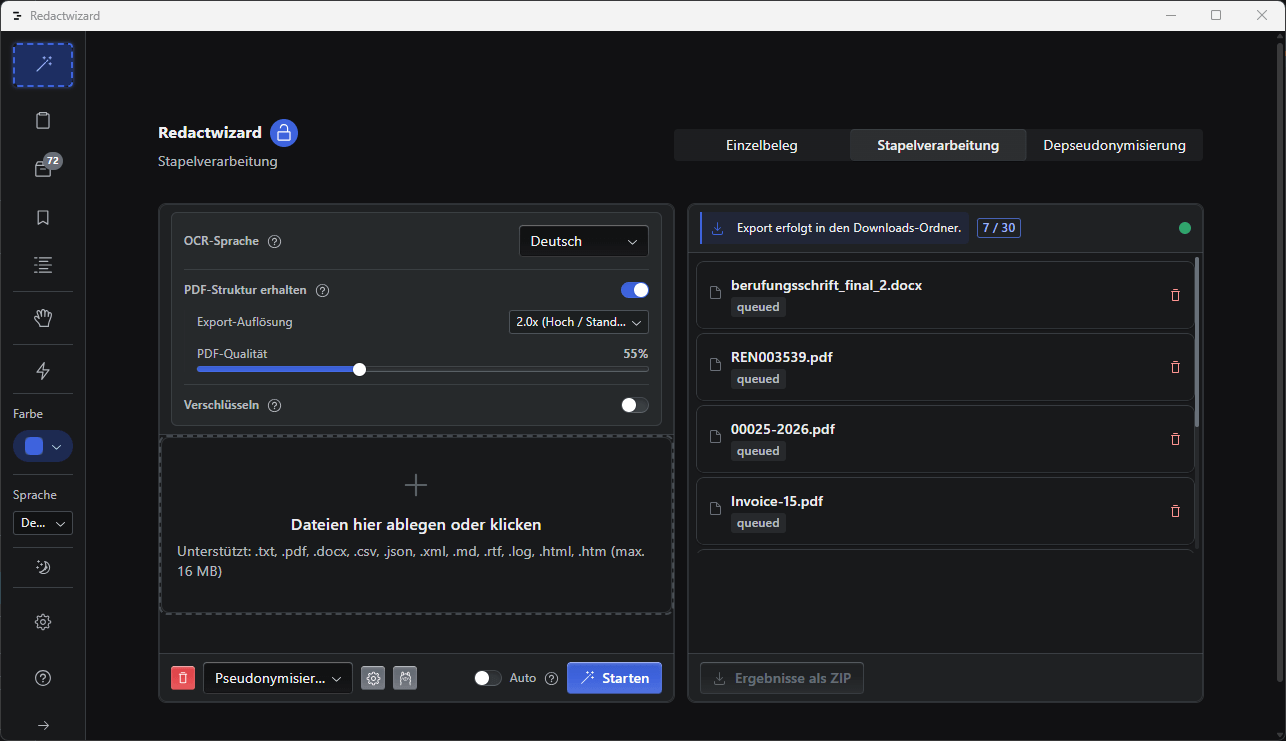
/input → Analysis → Export → /output
Screenshot 28
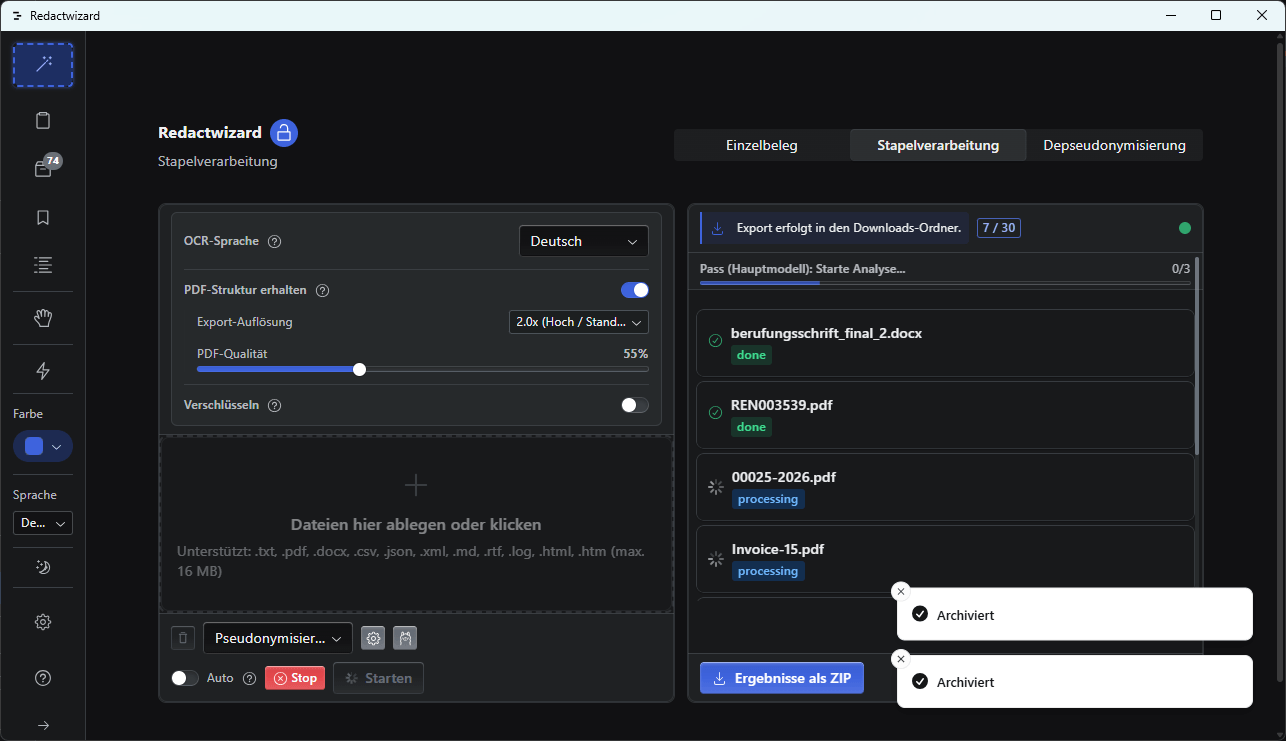
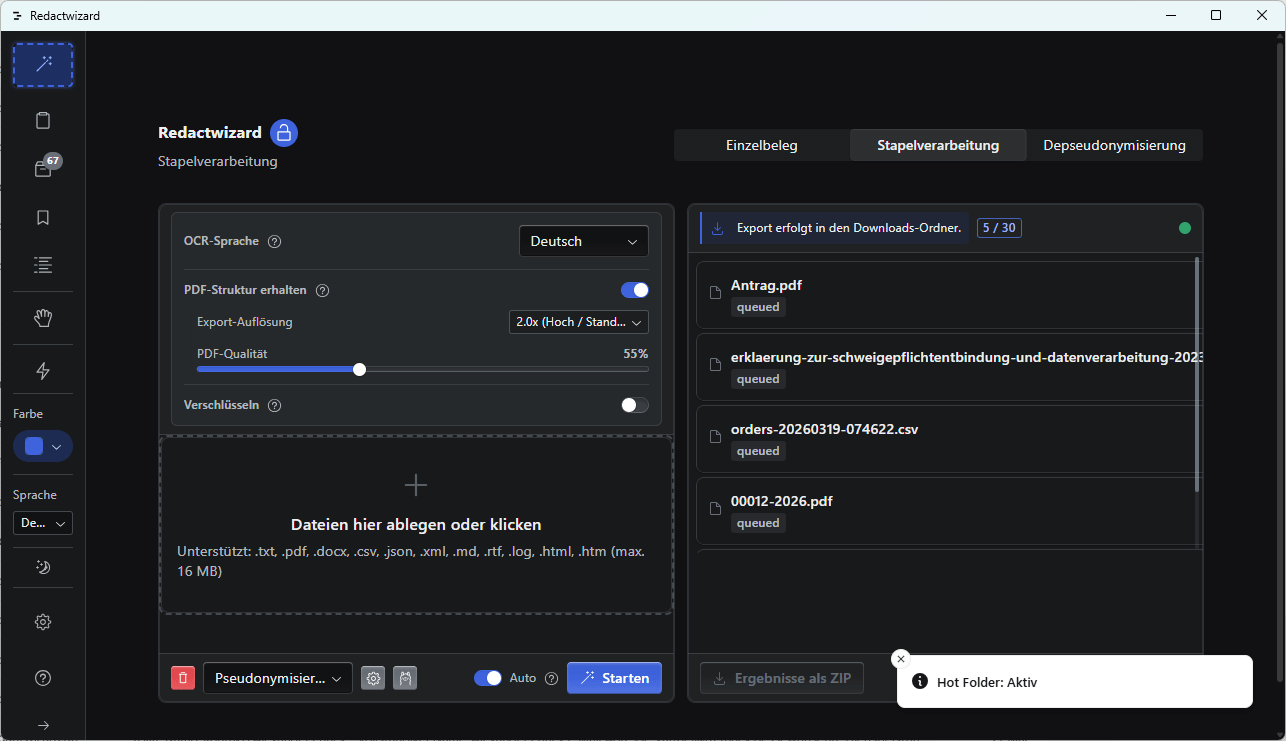
Batch mode can hold up to 30 documents in a folder and process them in a single run.
Screenshot 27
With the "Hot Folder" feature, processing starts immediately after a document is placed into the folder. Ideal for ad-hoc maskings. To enable this, toggle the switch to the left of the Start button.
Screenshot 29
The result is provided as a ZIP archive.

Diff Check

This is a free curated feature for comparing arbitrary (contract) documents. Document comparisons are not only necessary for anonymization or pseudonymization—revisions, price comparisons, offer comparisons, legal filings, replies, and many other business processes require them too. Comparison is thus an indispensable part of daily business operations. Without accessing cloud services or third-party service providers, the comparison runs 100% locally on your desktop computer. A 1:1 comparison is supported; in batch mode, you can compare one document against multiple revisions. Ad-hoc comparisons are quick using the text editor screen, where you simply paste two texts to compare directly into the editor text field.

Checks
  • Text changes
  • Removed content
  • Formatting differences
Screenshot 84
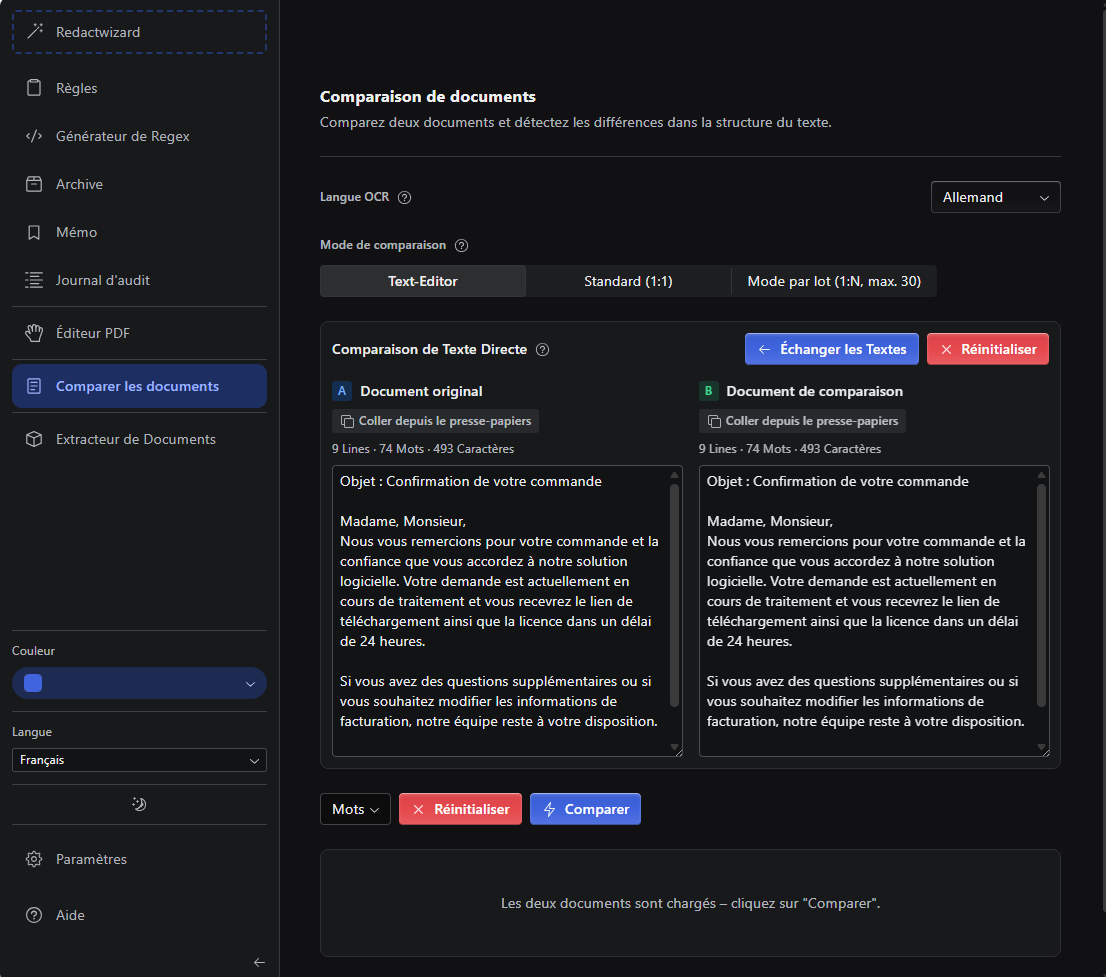
Use the text editor for quick comparisons. Copy & Paste - Start Comparison - Result. Screenshot is in French.
Screenshot 33
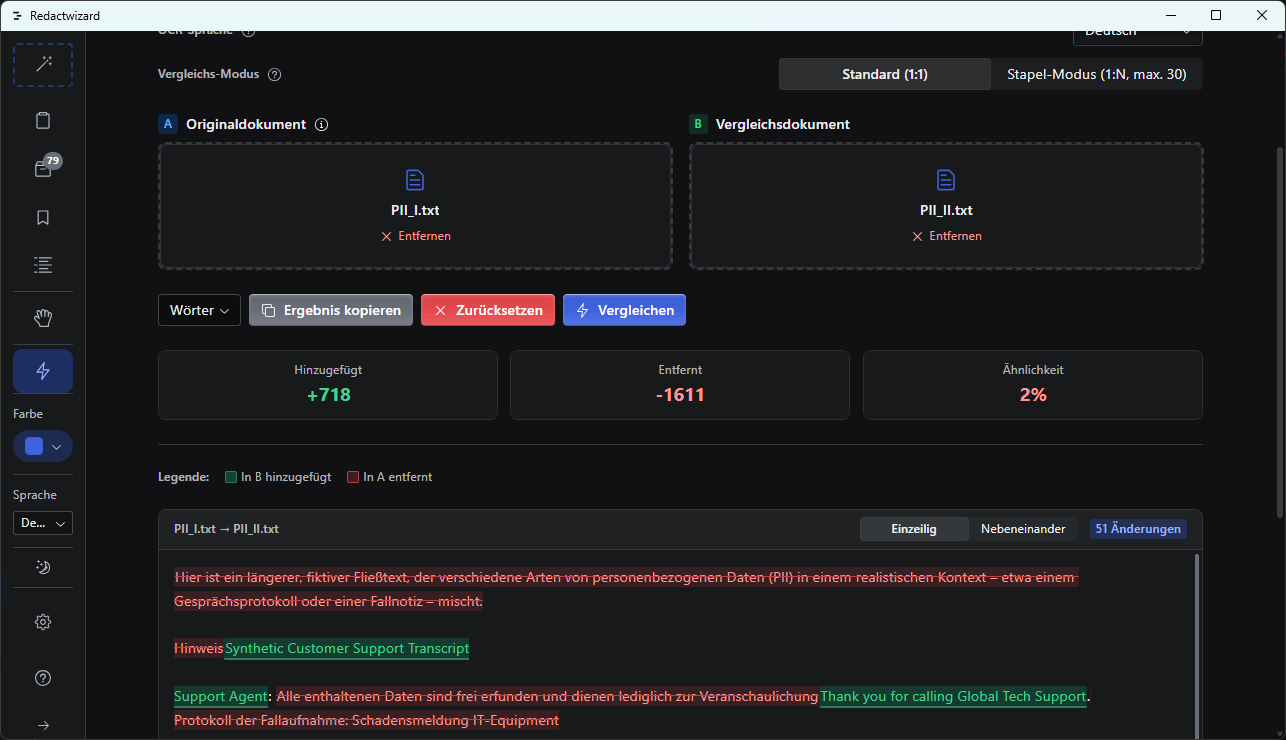
You can compare a document 1:1 or 1:N (Original vs N documents). You can copy the result to your clipboard.

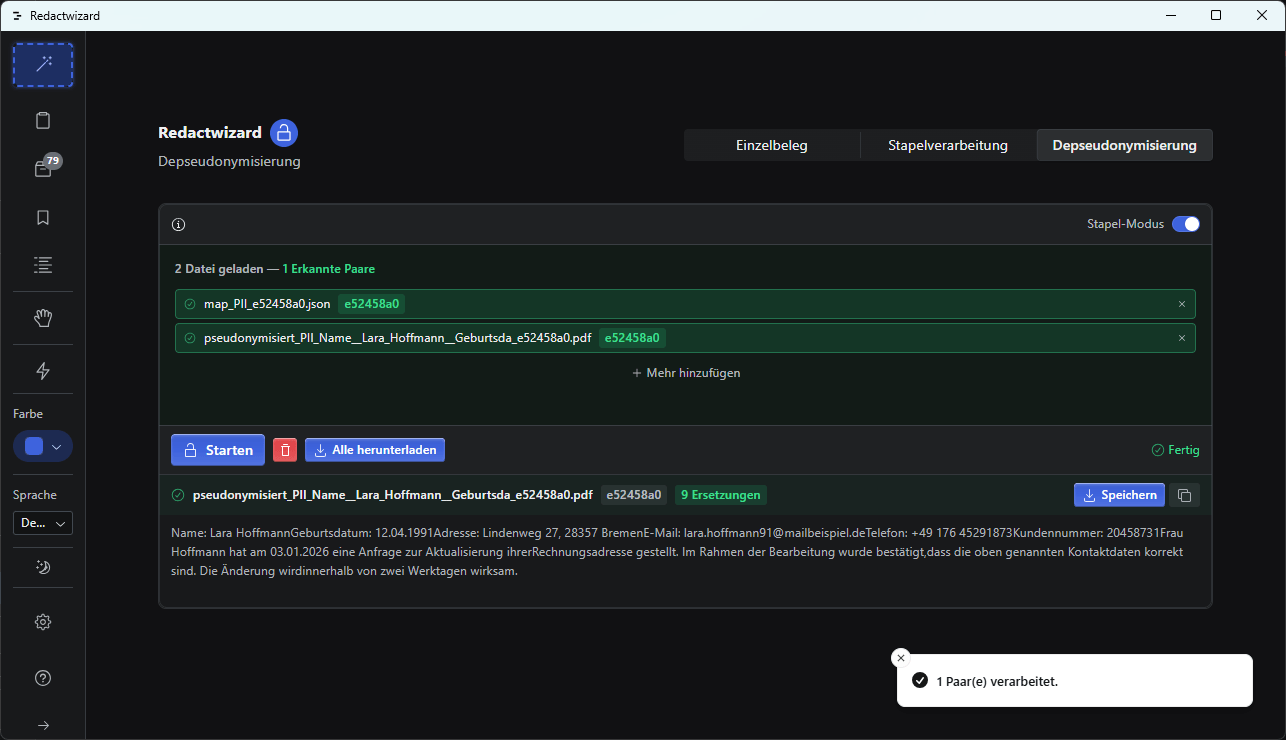
Depseudonymization

Restore original values using the matching JSON map (UUID4 or numeric mappings).

Every JSON map contains a hash code in its file name, which must match the file name of the document to be depseudonymized.

{
    "20458731": "<pii_0c6a1f9f>",
    "Lara Hoffmann": "<per_a34a20f2>",
    "12.04.1991": "<pii_f384f897>",
    "Lindenweg 27, 28357 Bremen": "<loc_4f7f76d2>",
    "lara.hoffmann91@mailbeispiel": "<pii_5a89d128>",
    "+49 176 45291873": "<pii_64202355>",
    "Frau Hoffmann": "<cus_d36a46ac>",
    "03.01.2026": "<regex_7601c24a>",
    "Rechnung": "<org_08f211f9>"
}

Depending on context, unusual or exotic terms may also be flagged as organizations or persons. This serves as ambiguity resolution, since NLP models are sensitive to bias. For extremely unusual names, entity-agnostic masking steps in, resulting in a false-positive tolerant masking process.
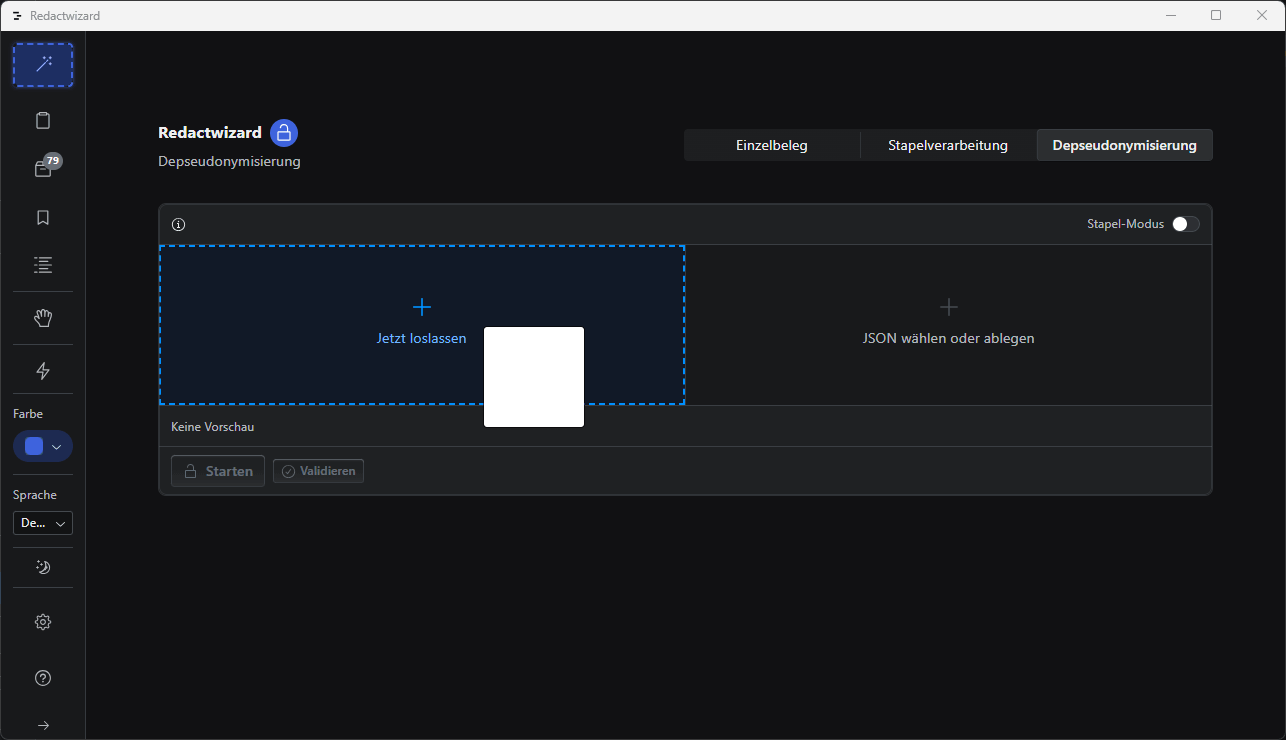
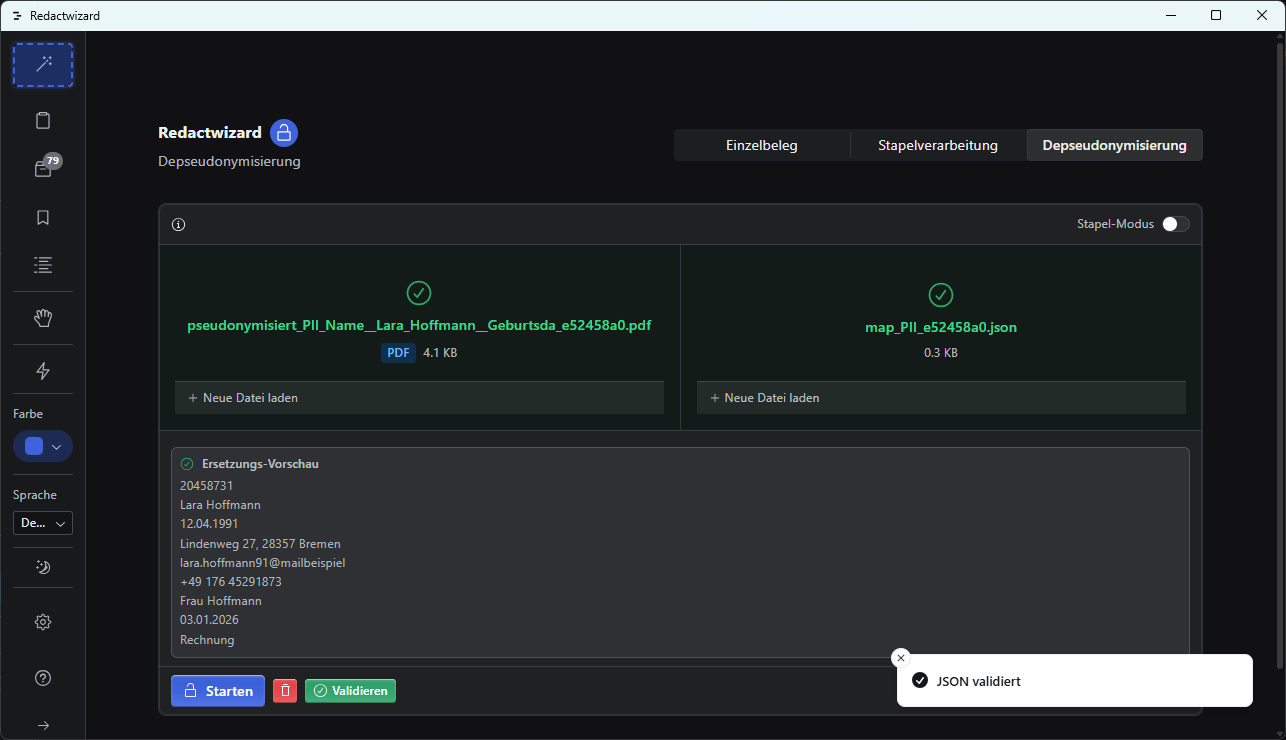
Screenshot 30
Insert the JSON map and the corresponding document into the interface.
Screenshot 31
You can re-validate the JSON map beforehand to check its contents and mappings.
Screenshot 32
If you want to depseudonymize an entire folder, use Batch Mode. Simply drag and drop all document-JSON pairs directly into the window.

PDF Editor

Integrated PDF editor for manual redactions and secure anonymization. While AI has the advantage of processing documents at high speed, it is not infallible. Human oversight remains the most reliable "AI". The PDF editor is ideal for ad-hoc redactions and, as a curated bonus feature, forms an integral part of the anonymization software—for solo legal practitioners and small SMBs alike.

Tools

The left panel contains a Pen, Eraser, and Rotate Square tool.

  • Pen: Redacts rectangular areas in the document
  • Eraser: Deletes drawn areas created with the pen
  • Rotate Square: Rotates the PDF document 90 degrees clockwise
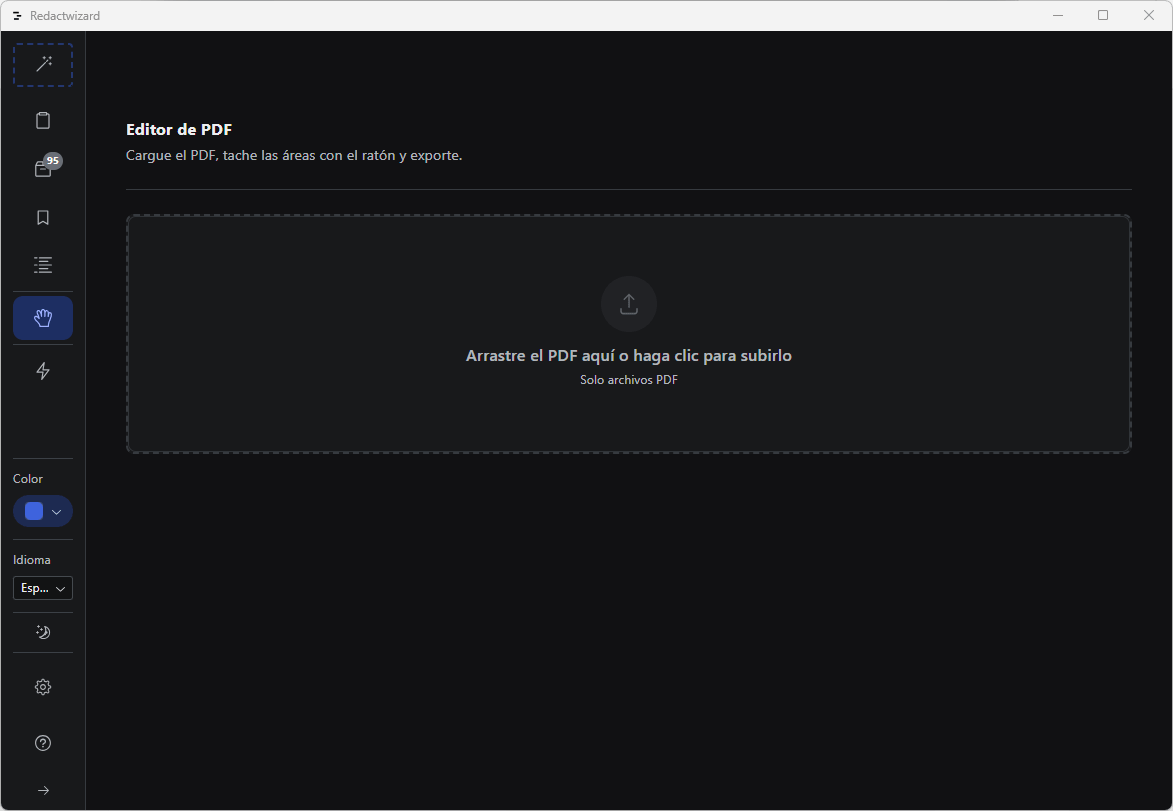
Screenshot 42
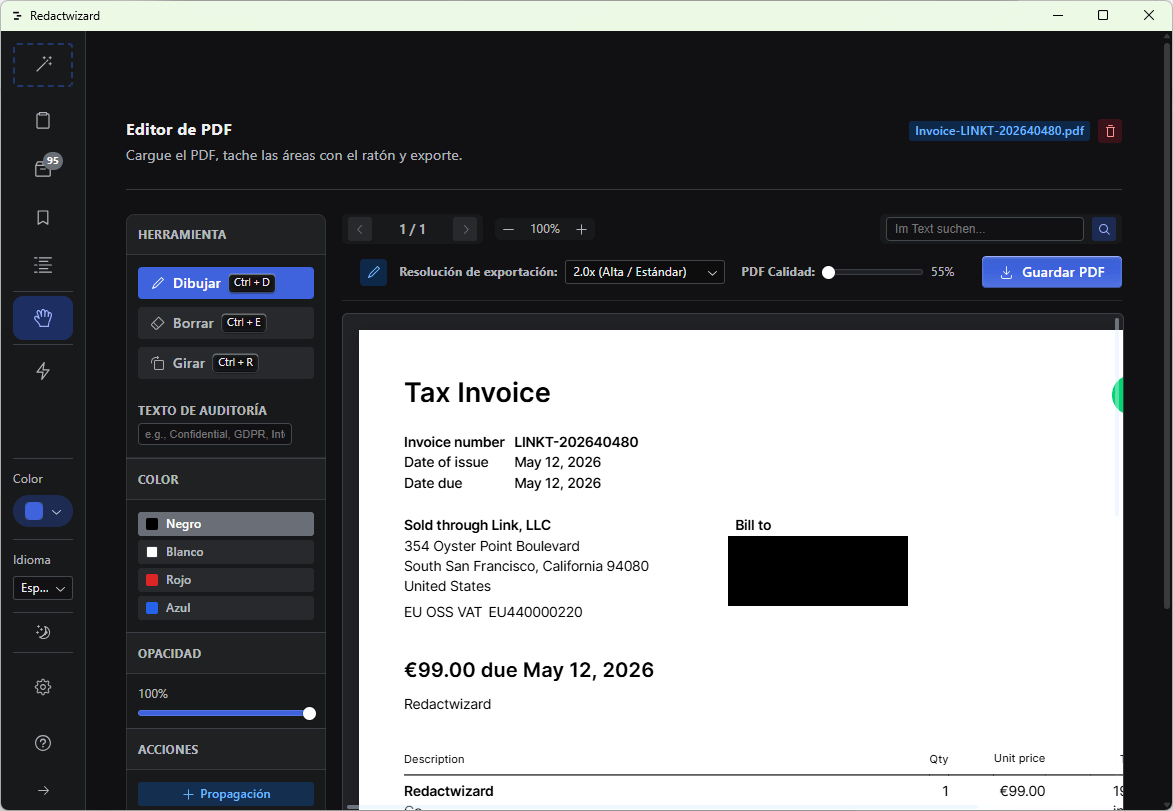
Import a PDF file. Only PDF files are supported (screenshot is in Spanish).
Screenshot 43
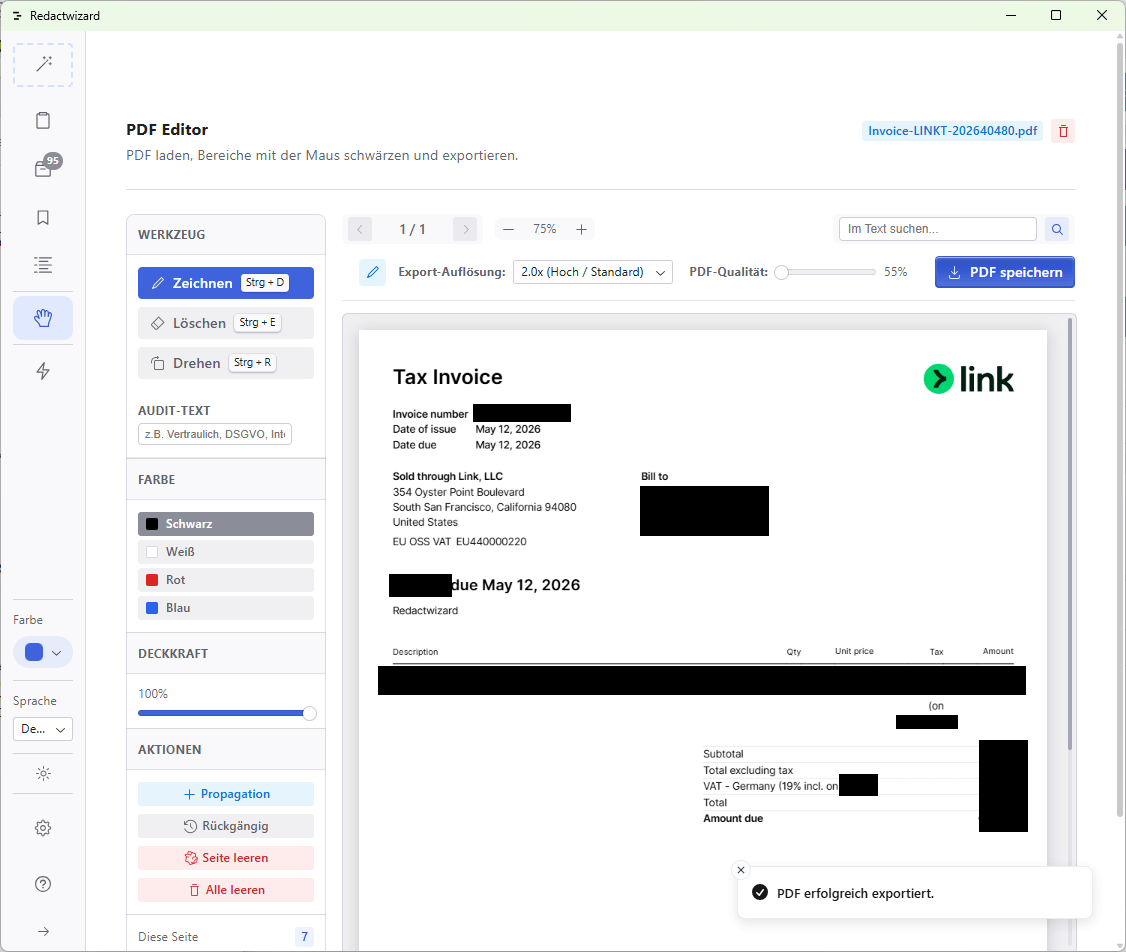
Use the pen tool (CTRL+D) to redact the billing address.
Screenshot 44
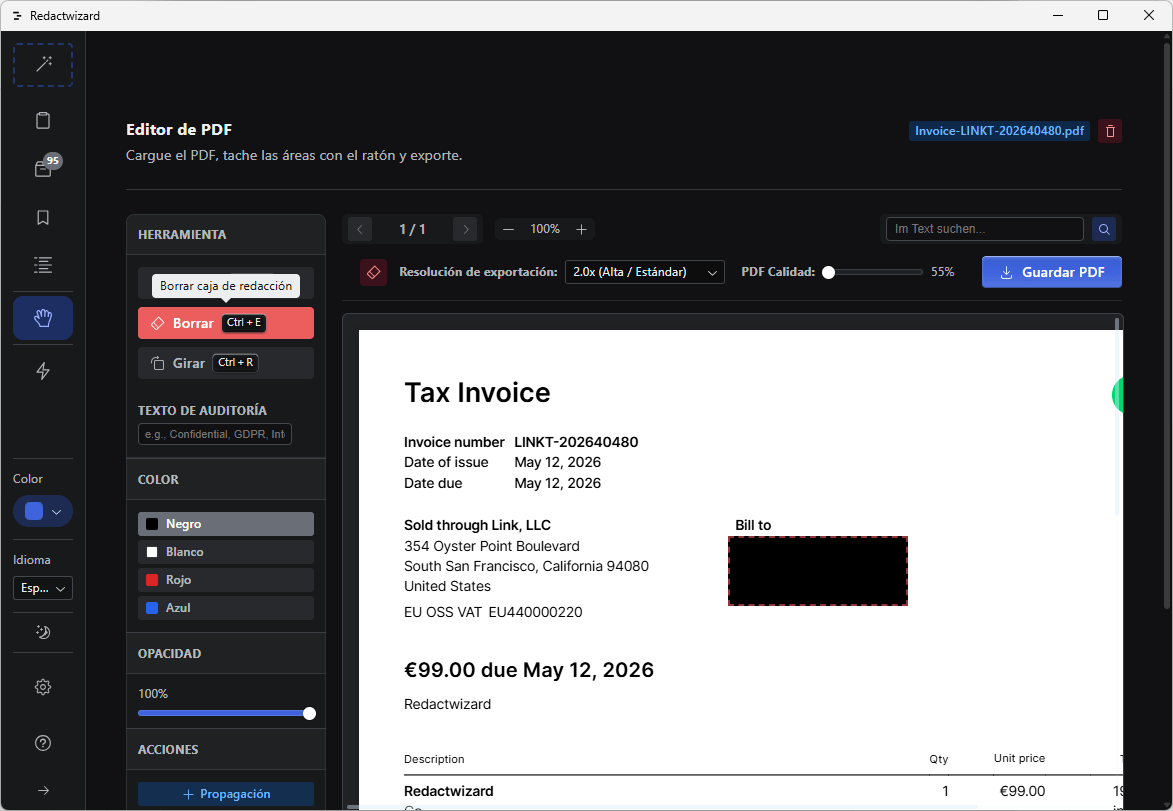
Use the eraser tool (CTRL+E) to remove the black rectangle. Simply click with the eraser on the area you wish to remove.
Screenshot 45
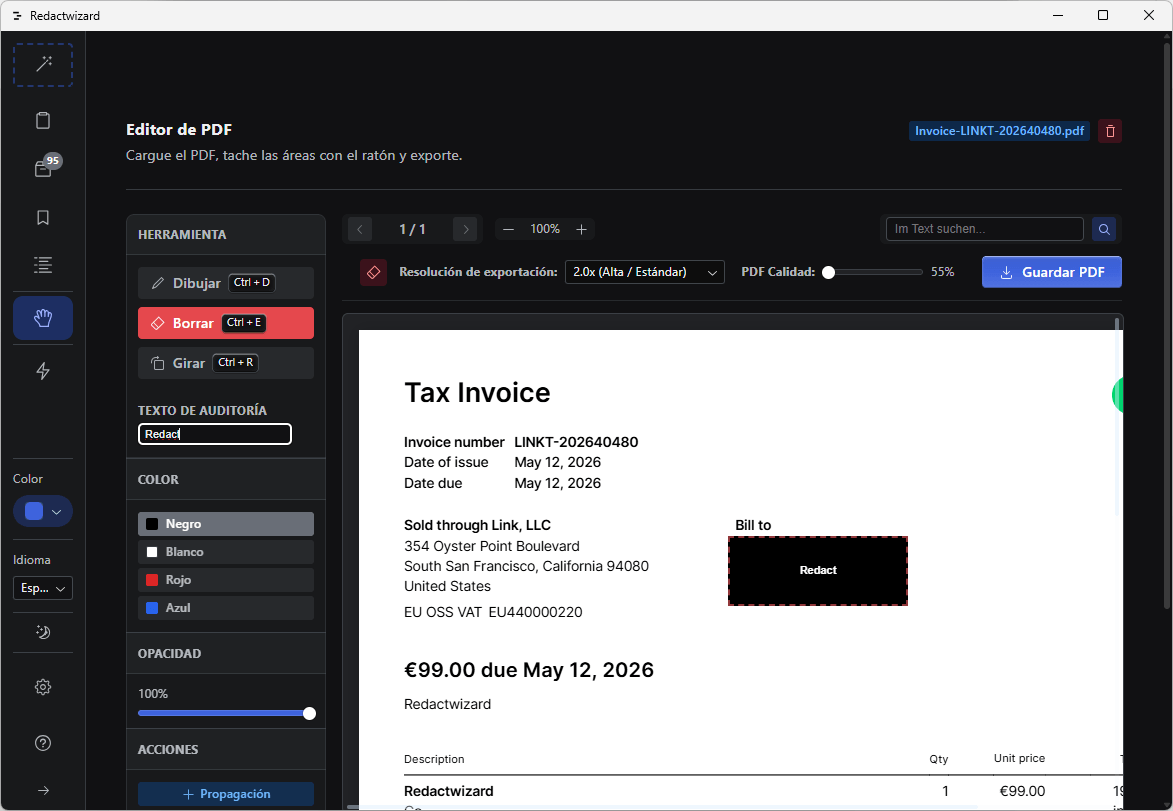
You can audit the redacted region for your records and add annotations.
Screenshot 46
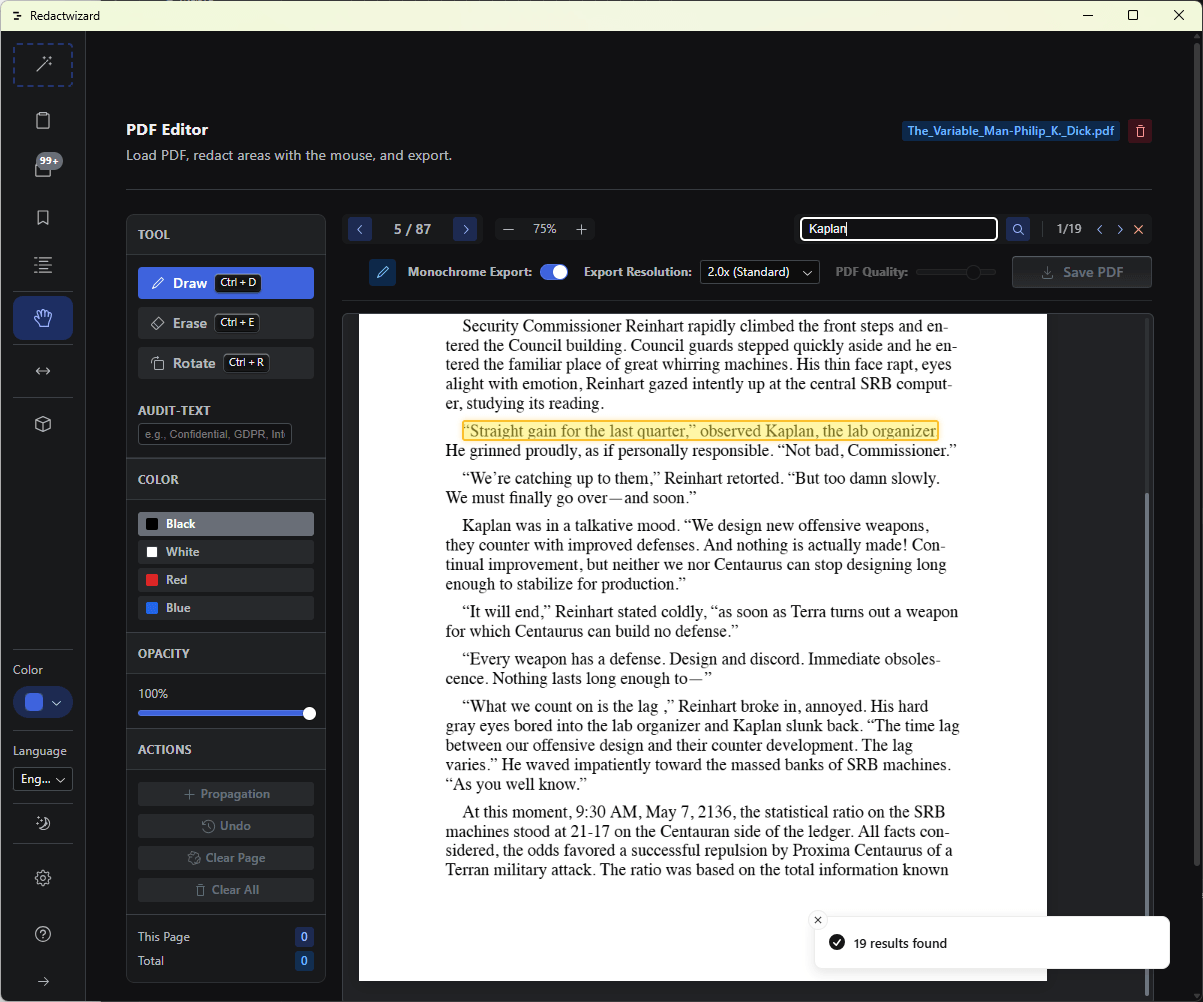
Use the search function to locate specific entities to be erased. Please note that only PDFs with searchable text content support this feature. As soon as you search for a word, you will receive a notification showing the total match count in the document (screenshot is in English).
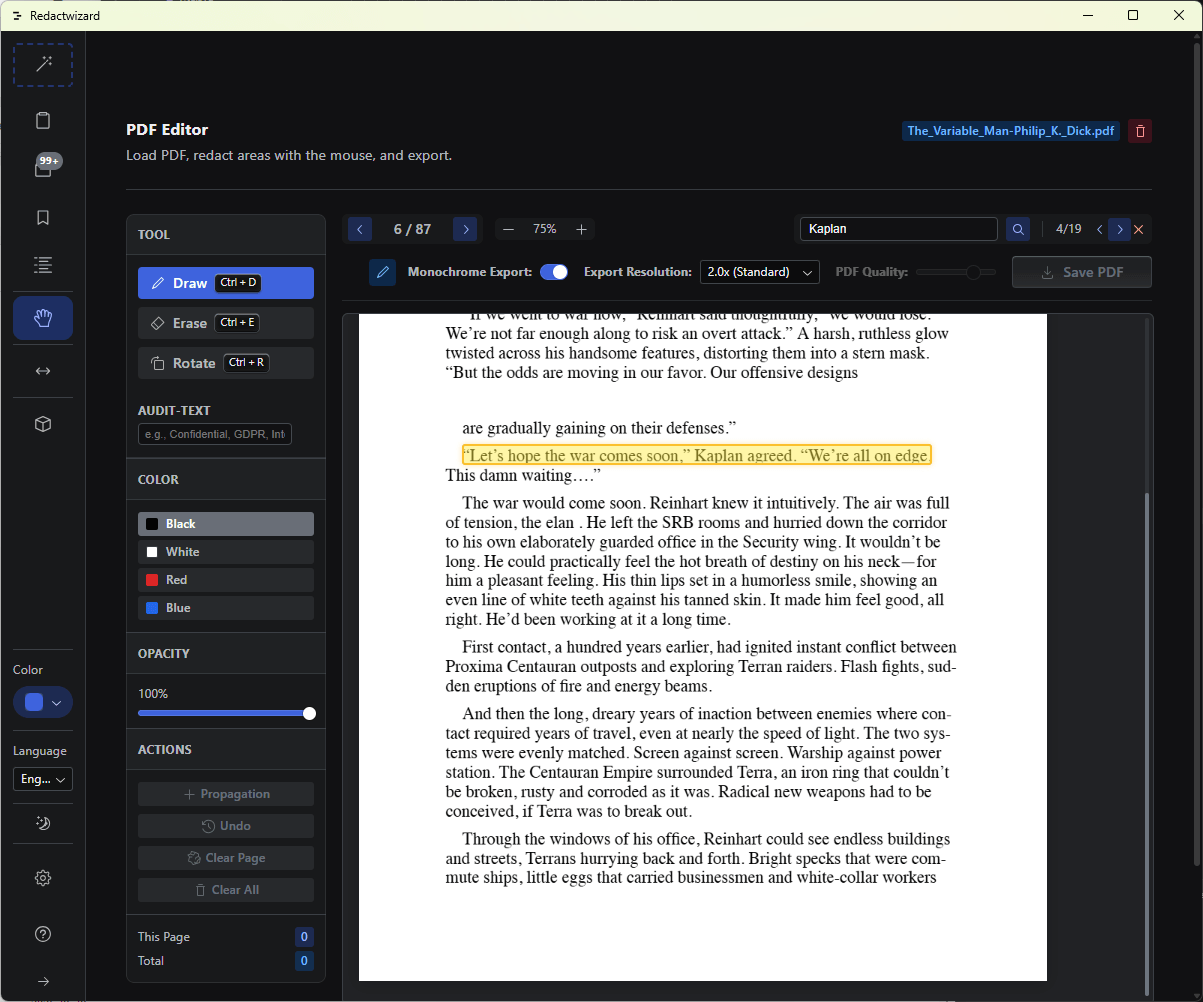
Screenshot 47
Use the caret arrows to easily navigate through all found search matches.
Screenshot 48
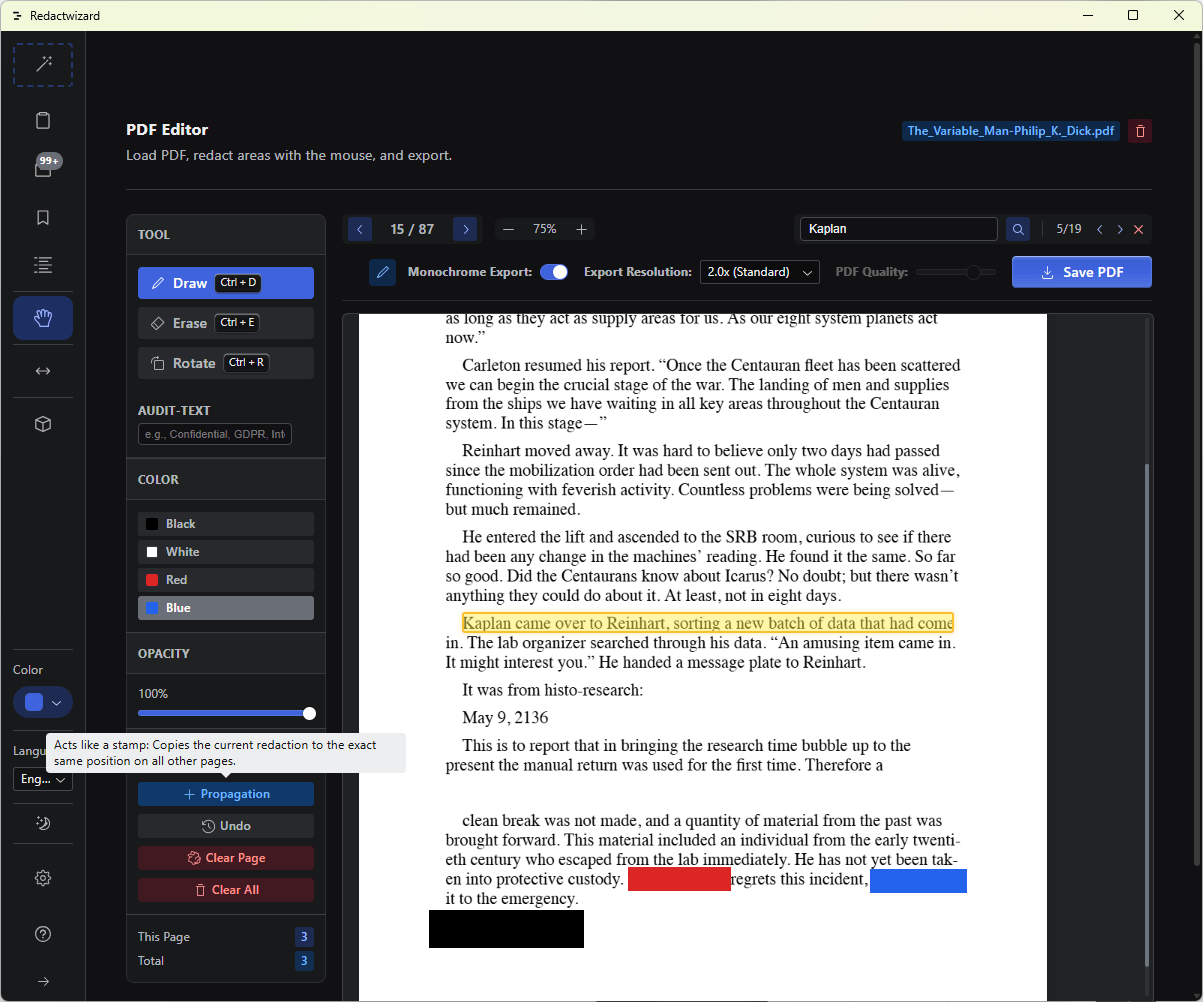
With the propagation feature, areas in the document that need redaction in the exact same position across every page (e.g., reference numbers, addresses, etc.) can be marked once and automatically copied to all other pages—like a digital carbon copy. Mark the area on the document to apply it. This applies to all selected regions across the document. In this example, there are three rectangles (Black, Red, Blue).
Screenshot 50
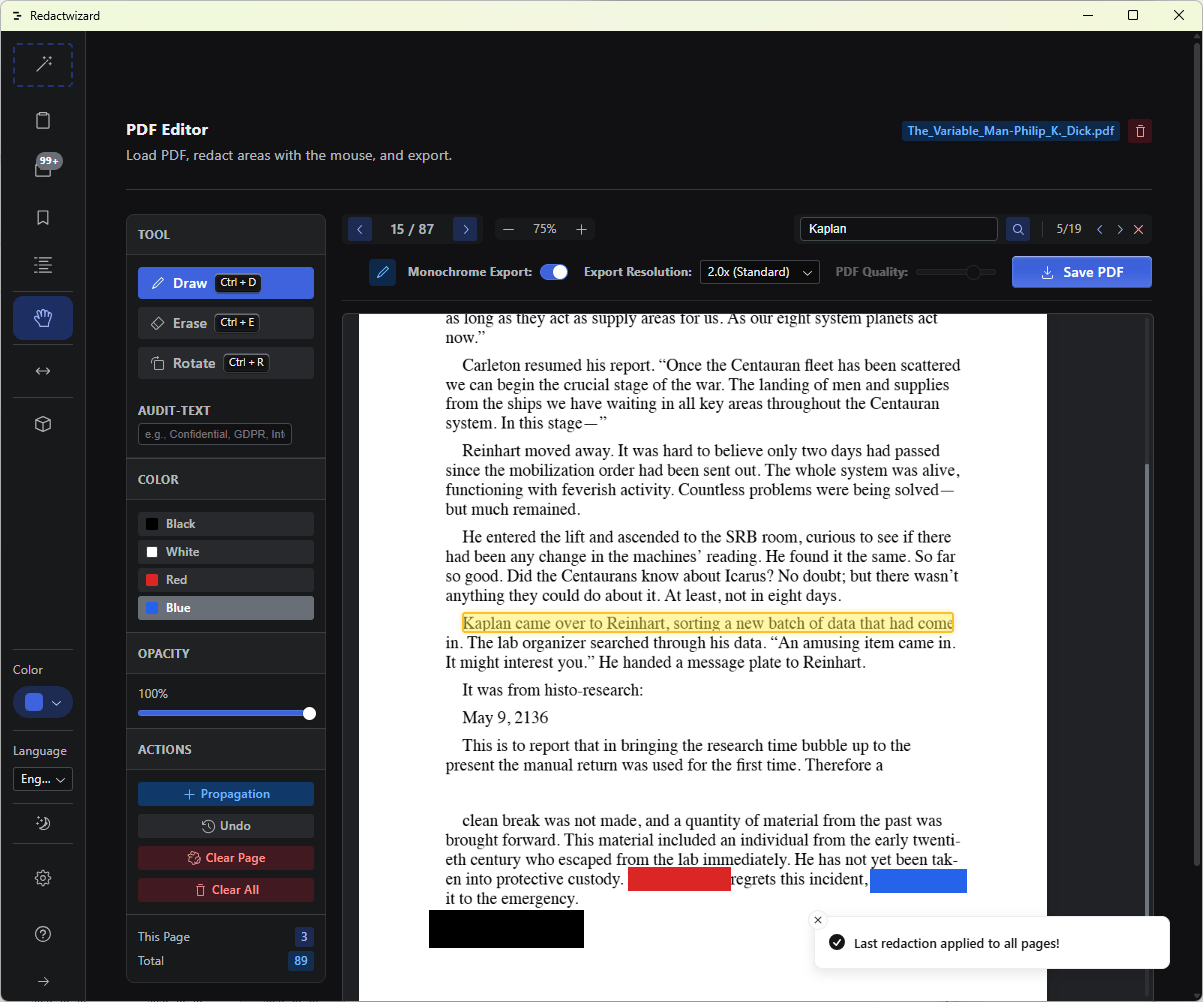
Click the Propagation button. All pages in the document now feature the redacted area in the exact same spot.
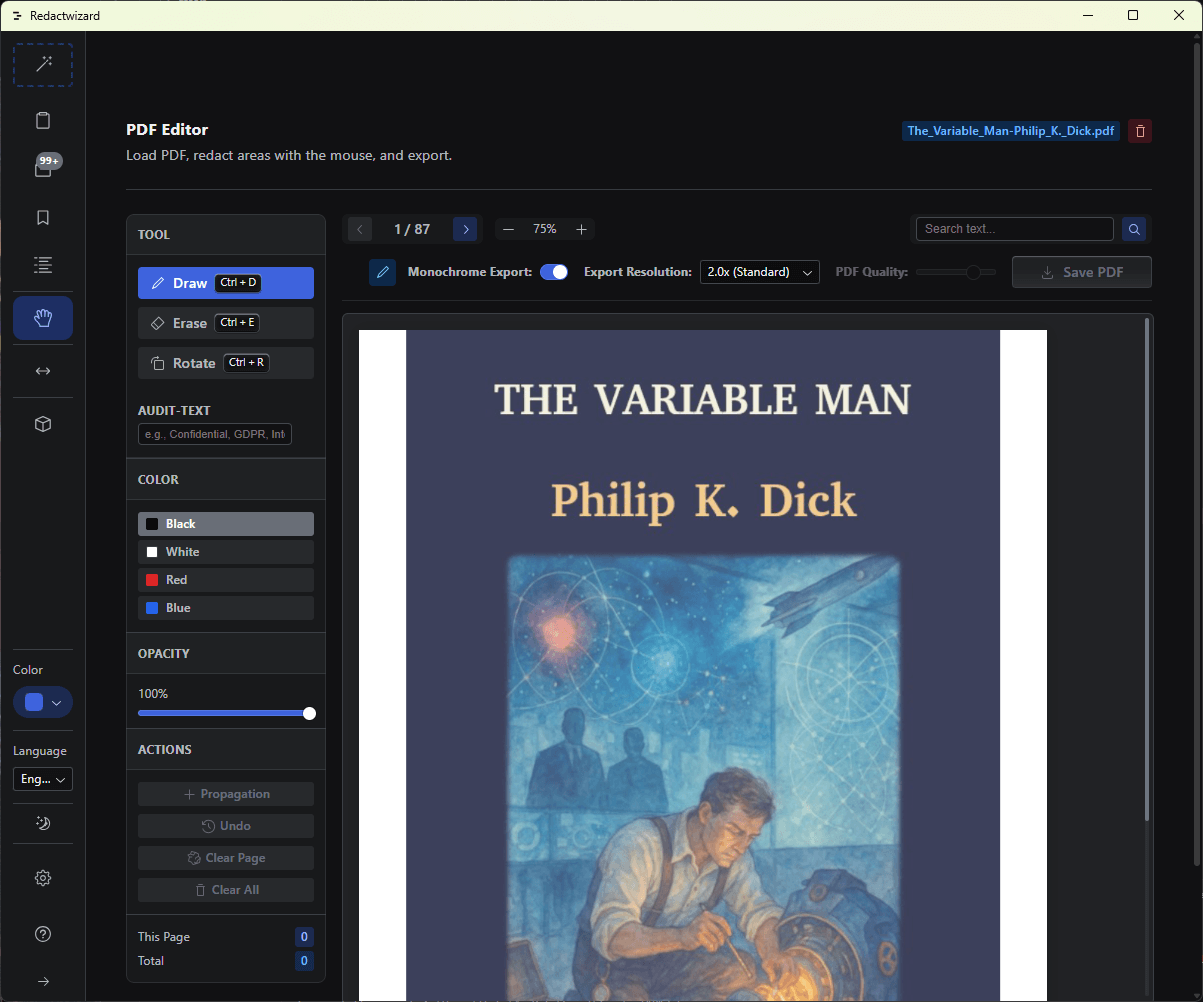
Screenshot 49
Multi-page PDF documents can reach an immense file size during export. This is particularly true for PDF files containing illustrations, diagrams, and graphics. You can reduce file size by lowering the PDF (JPEG) quality and export resolution. A far more effective method—and highly recommended—is using the binary B/W export function. This flattens the PDF canvas into a 1-bit color document with only two color levels (black and white). File size is reduced by roughly 70–80% compared to color documents.
Note, however, that this is a computationally intensive process and may take several minutes for larger documents depending on hardware performance.
Screenshot 69
Illustrations may lose level of detail during this process. As long as this is irrelevant for editorial purposes, this method is still recommended to keep file sizes small and make documents print-friendly for monochrome laser printers.
Screenshot 51
When finished, save the document. The document will be saved in the /Download folder, completely cleared of metadata or underlying text. Redactions are permanently burned into the digital document.

Black-/Whitelist

Define allowed and forbidden terms.

Type Description
WhitelistNever redacted
BlacklistAlways redacted
Screenshot 8
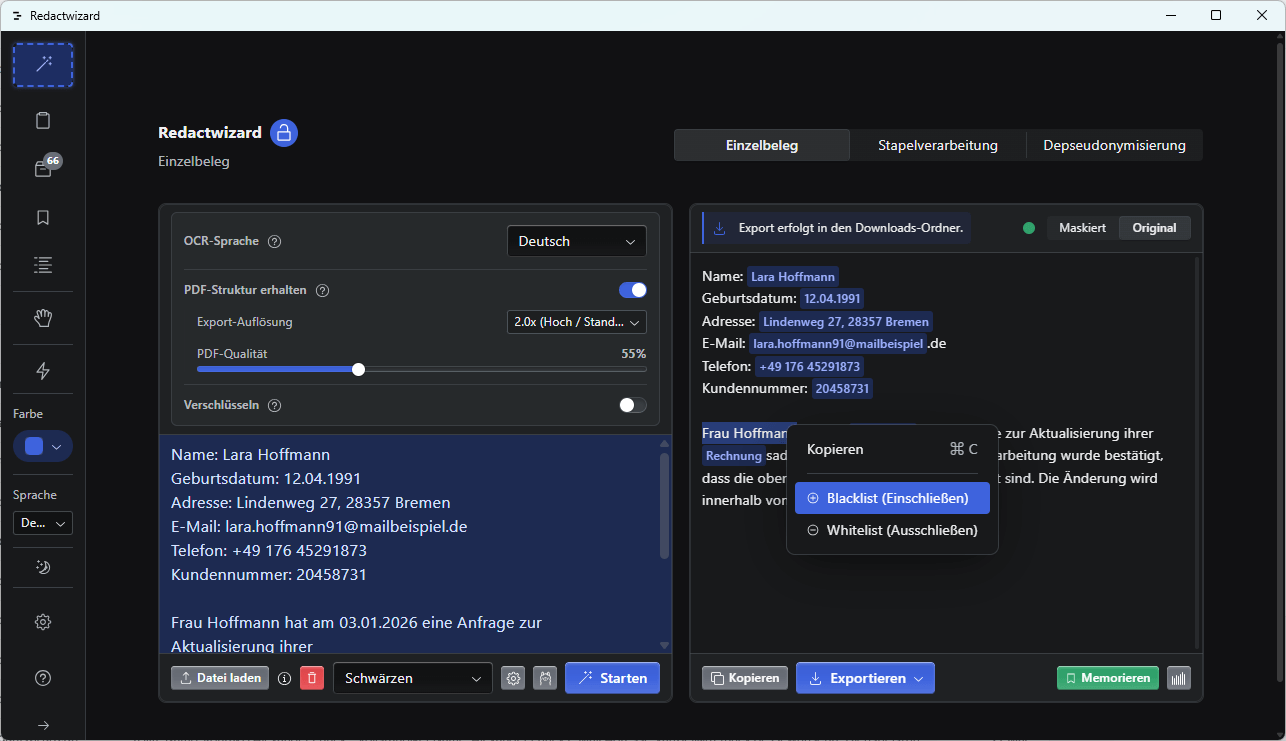
In this example, we add an overlooked name, "Frau Hoffmann", to the blacklist. Highlight both words and right-click to open the context menu. Select the "Blacklist" entry. This entity is now blocked for future passes. It will appear in subsequent runs tagged with the "CUS" (Custom) label. The exact same steps apply for whitelisting words.
Screenshot 9
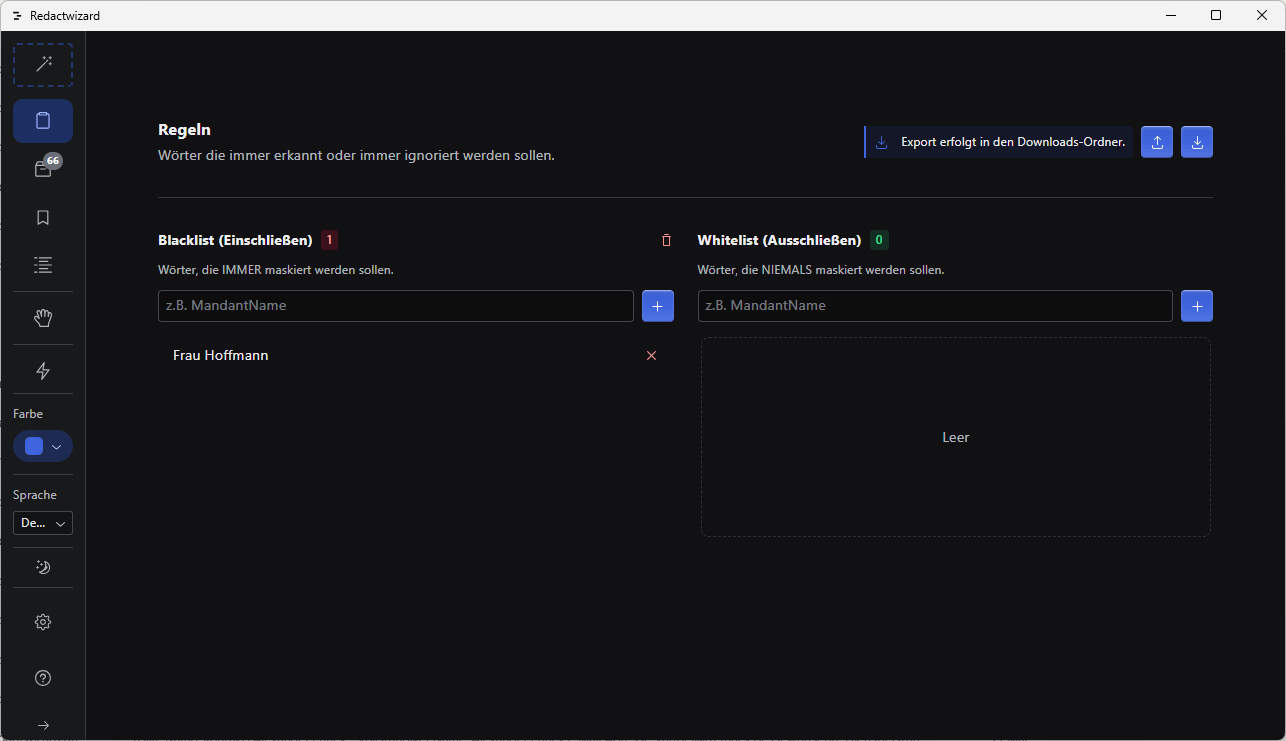
You can edit blacklist and whitelist rules in the rules settings screen. This screen is also accessible via Quick Settings and Model Settings.

Archive

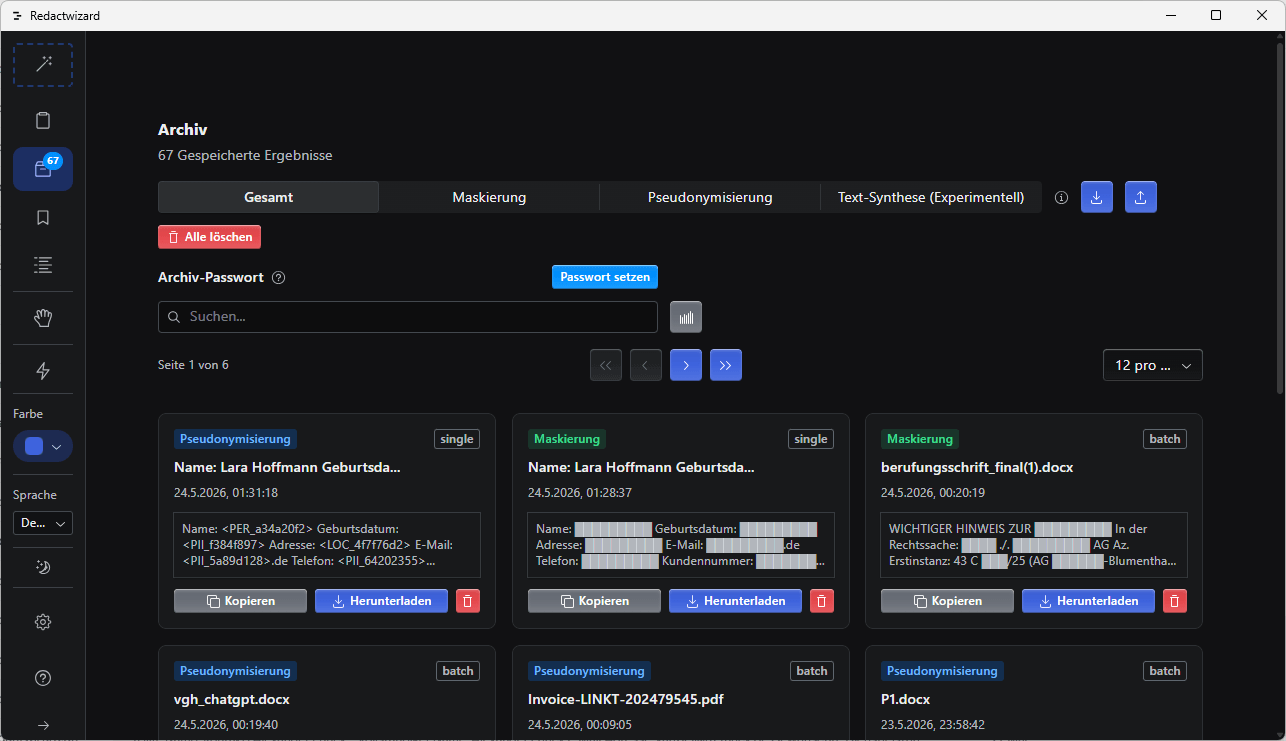
Securely archive processed documents. Every run (single item or batch) is stored here and can be downloaded or copied at any time.

  • Version history
  • Metadata
  • Export features
Screenshot 18
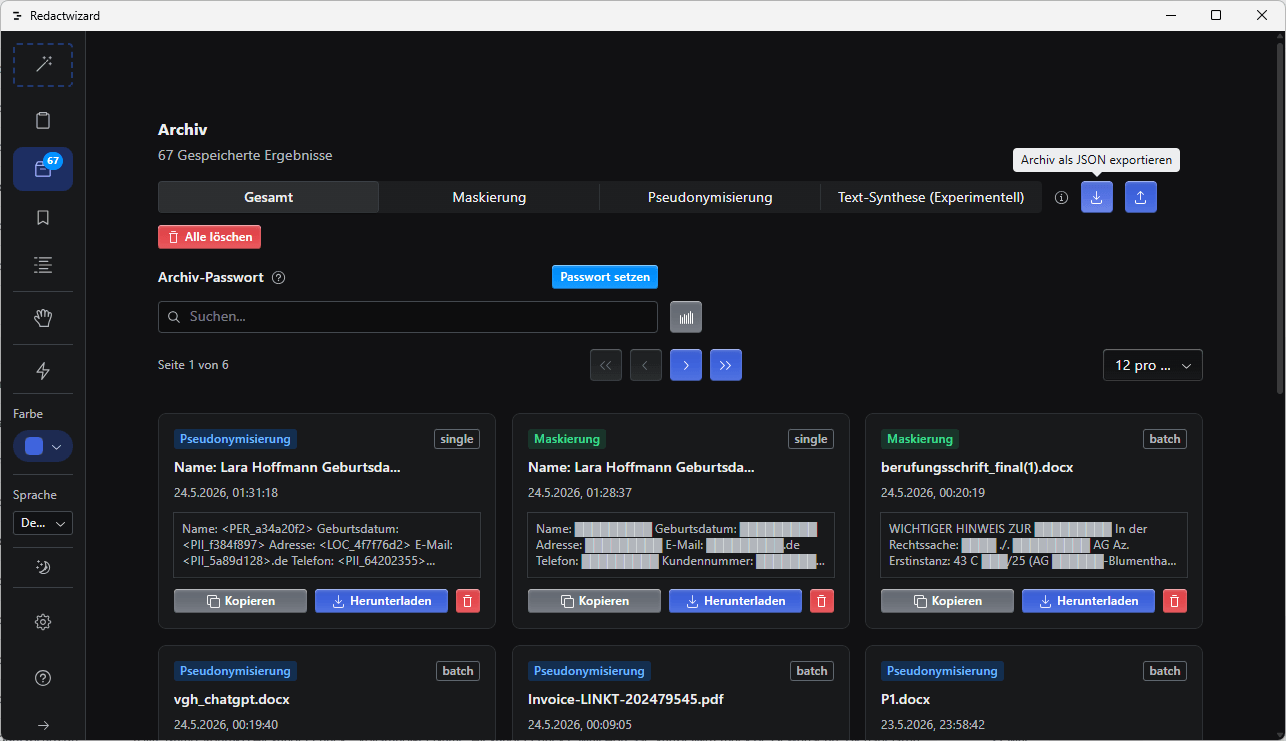
The archive contains all documents and text files successfully processed. Encrypted results require password verification.
Screenshot 19
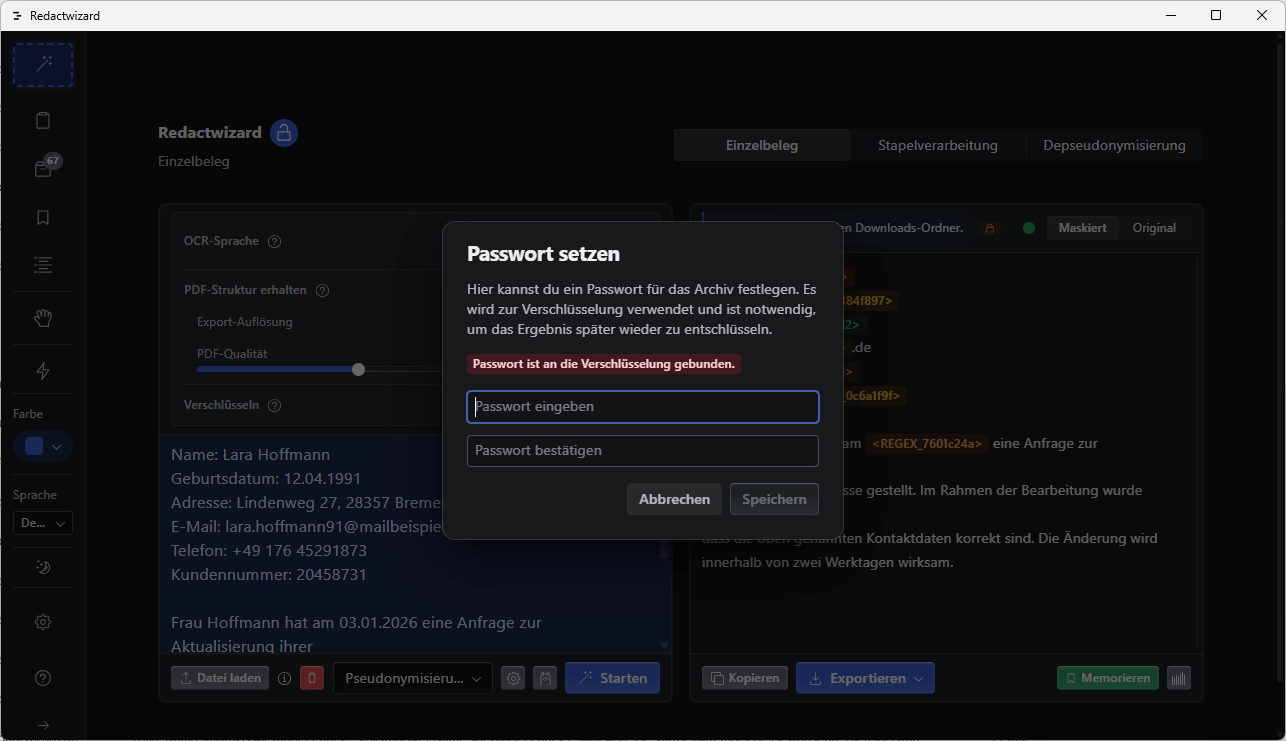
Set a password for entry encryption. Encryption applies to entries created after the password has been set. Make sure to note down the password, as it cannot be recovered.
Screenshot 21
You can export and re-import the entire archive for backup purposes in JSON format. Please note that encrypted entries can only be decrypted using the previously defined password.
Screenshot 86
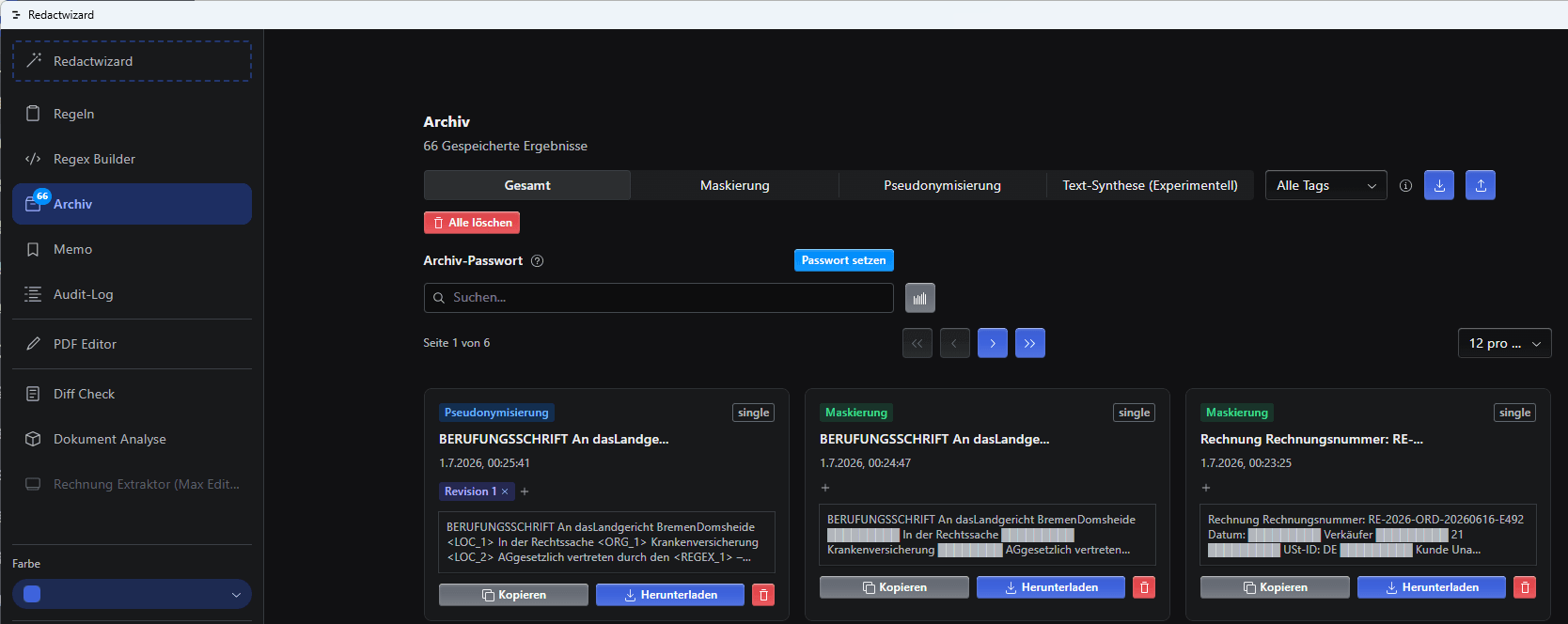
Tags can be assigned to each entry. Use these tags to mark entries for quick reference.

Audit Log

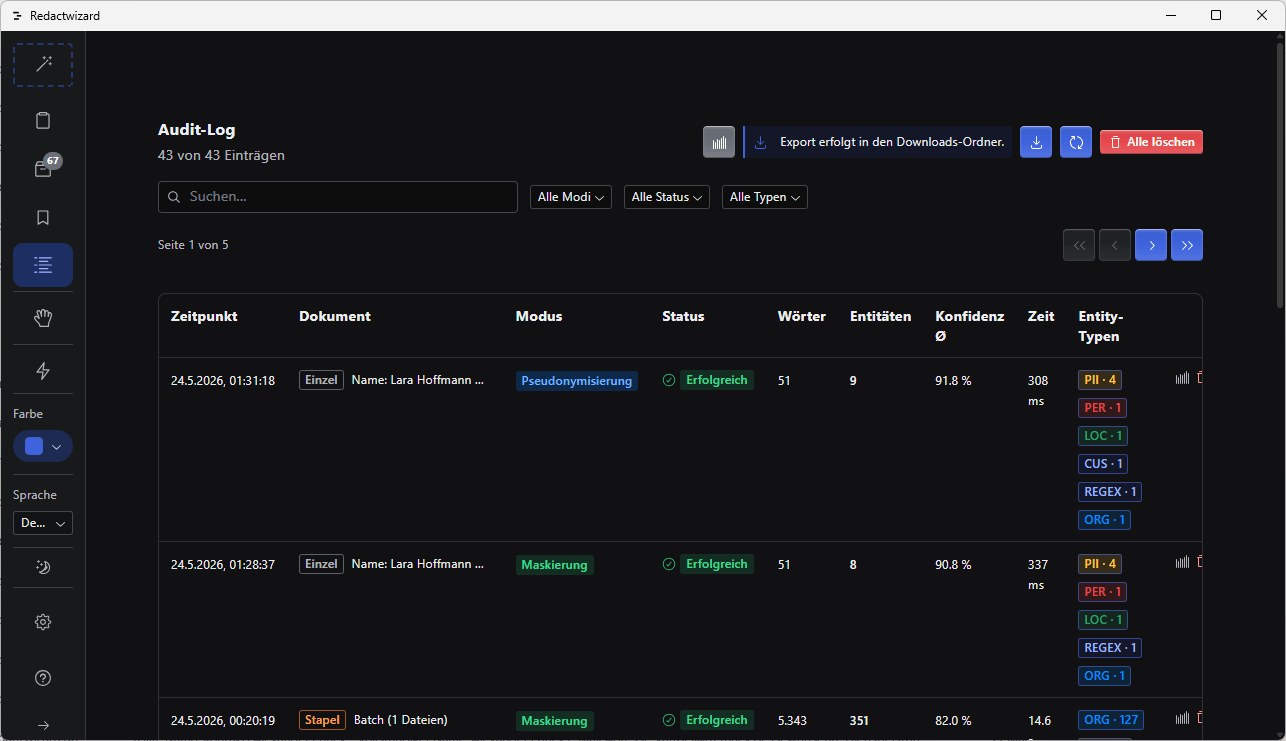
Logs all actions and processing steps. Here you can review all runs and delete them if necessary (not recommended).

Date [2026-05-23 10:14]
Document patient_record.pdf
Mode Masking
Status Successful
Screenshot 16
Execution time metrics are system-generated estimates.
Screenshot 17
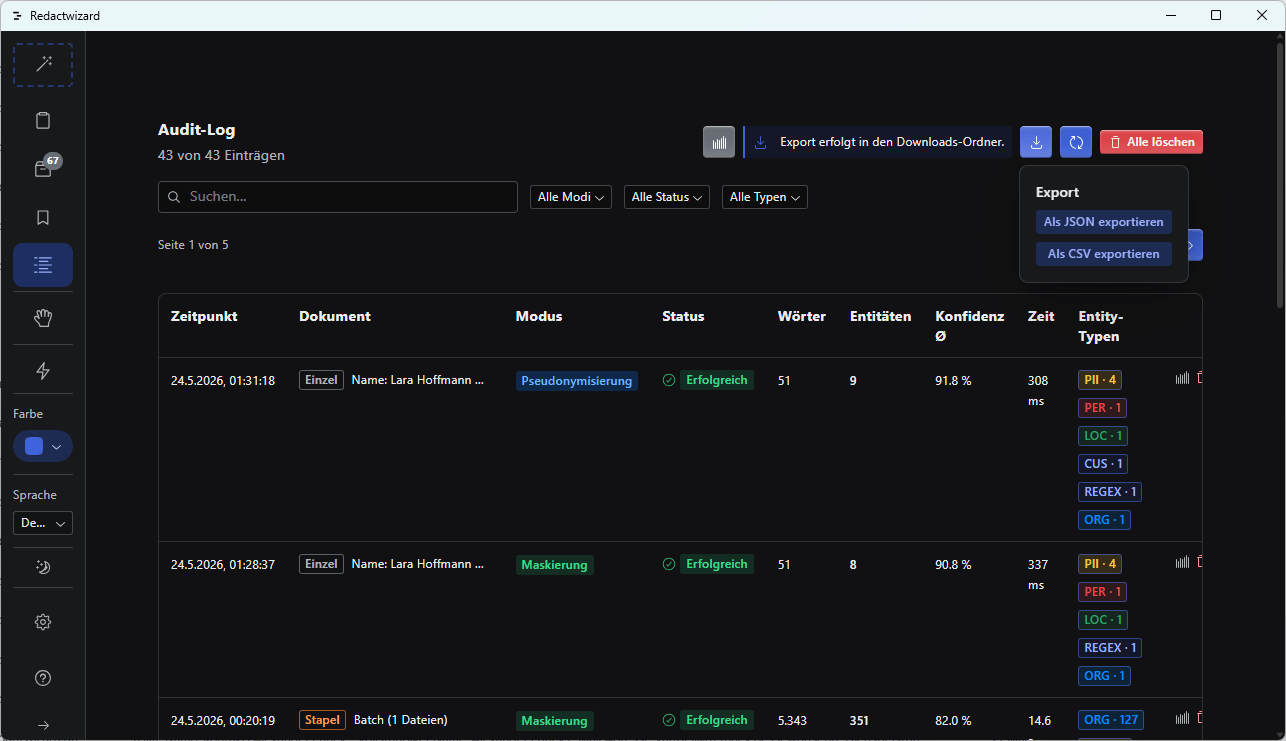
You can export the audit log for documentation purposes as a JSON, PDF, or CSV file.

Report

Screenshot 13
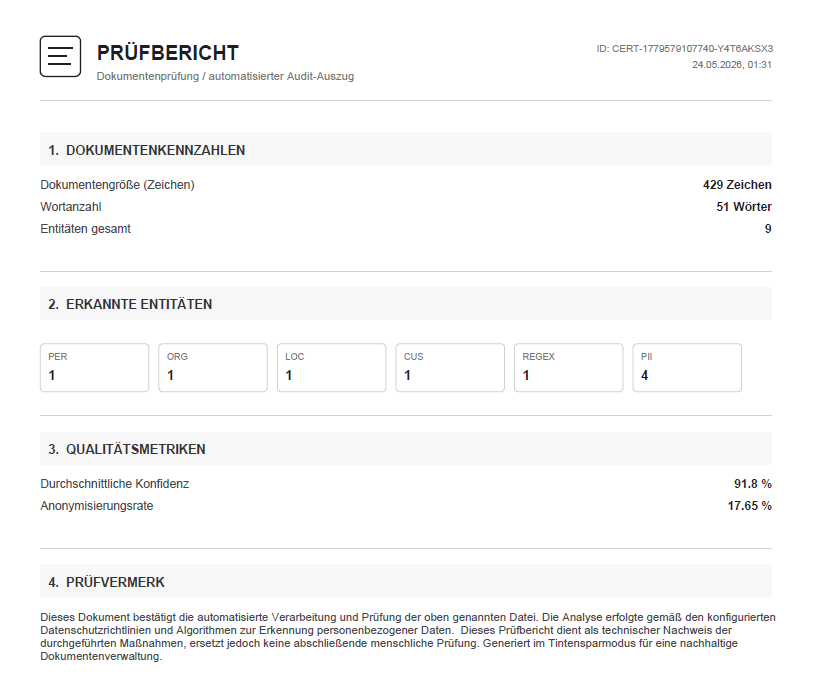
In Single-Document Mode, you can generate a report after each run for personal verification.

RegEx

Screenshot 23
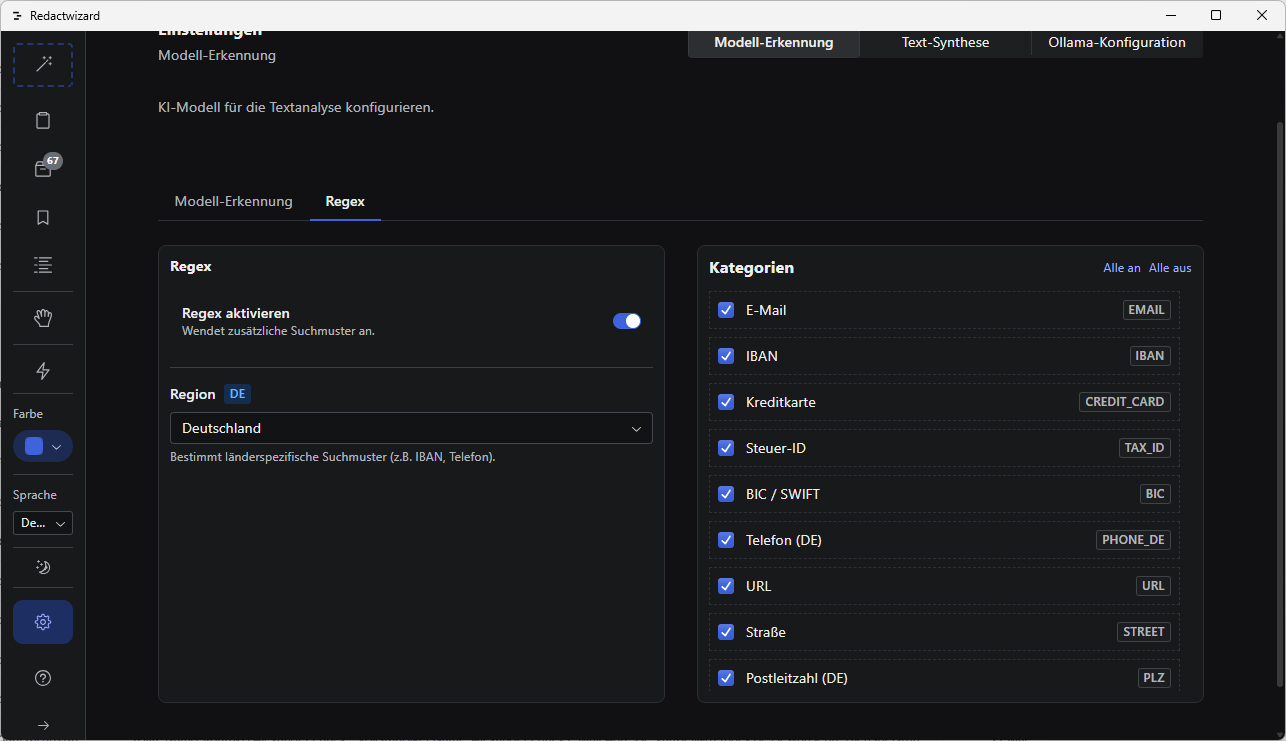
RegEx are regular expressions that assist the AI in masking using algorithmic rules. This assistance can be disabled, which is especially useful for date entries.

Regex Builder

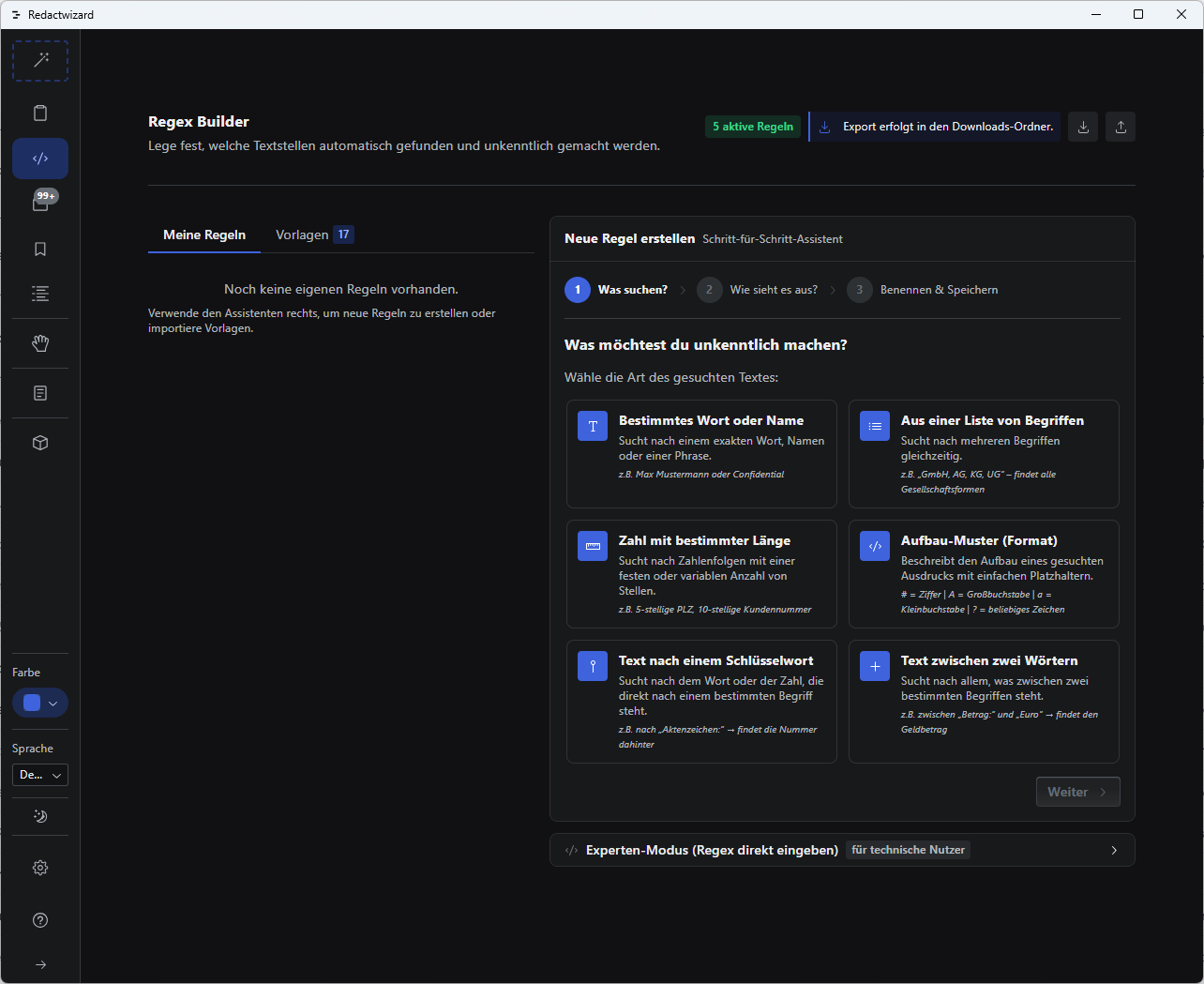
Screenshot 75
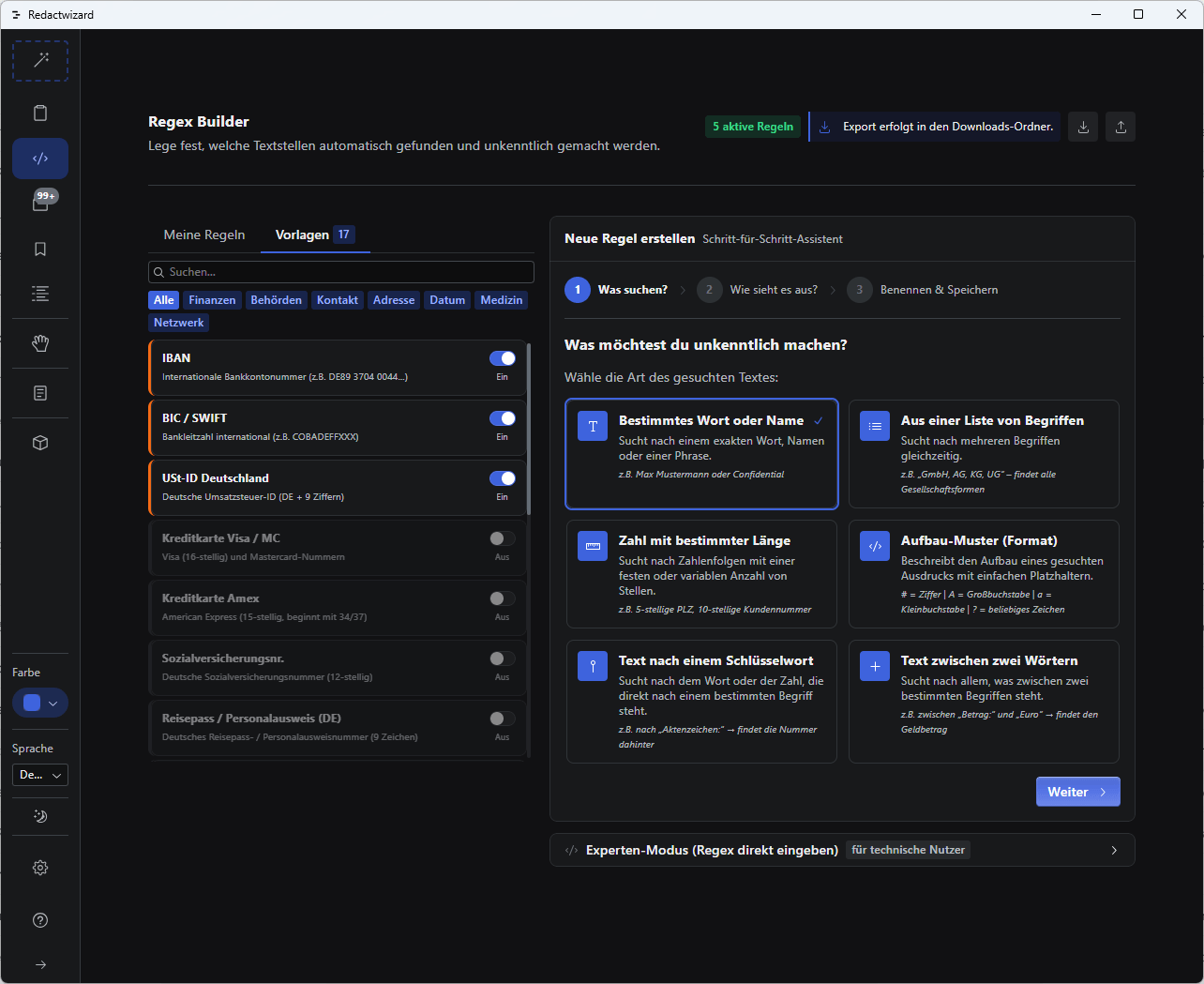
With the Regex Builder, you can construct regular expressions through a step-by-step wizard without coding or mathematical knowledge.
Screenshot 76
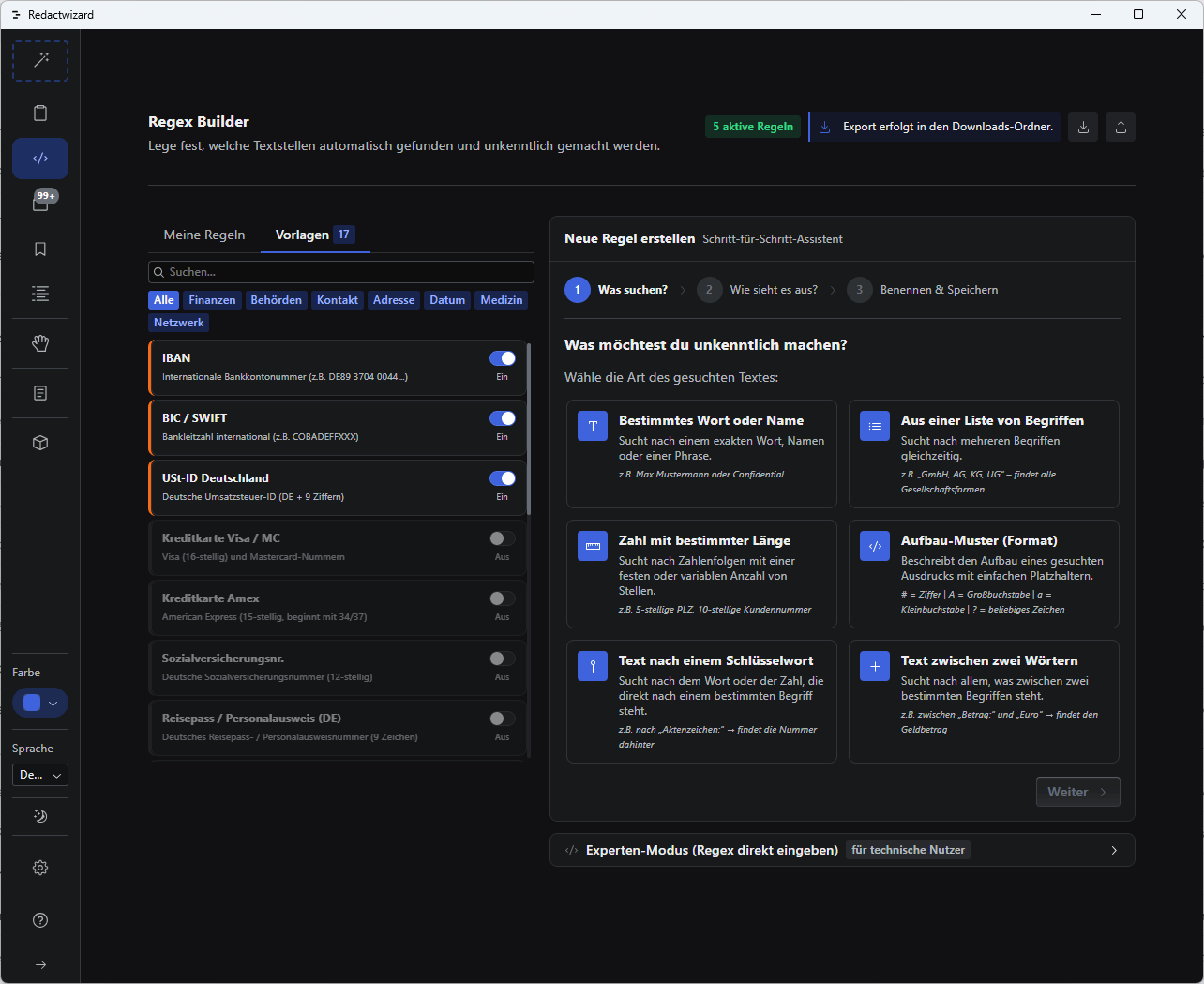
In addition to built-in templates, you can save your custom RegEx rules under My Rules for quick access. RegEx rules—including templates and custom creations—are applied alongside country-specific RegEx rules in the NER RegEx settings.
Screenshot 77
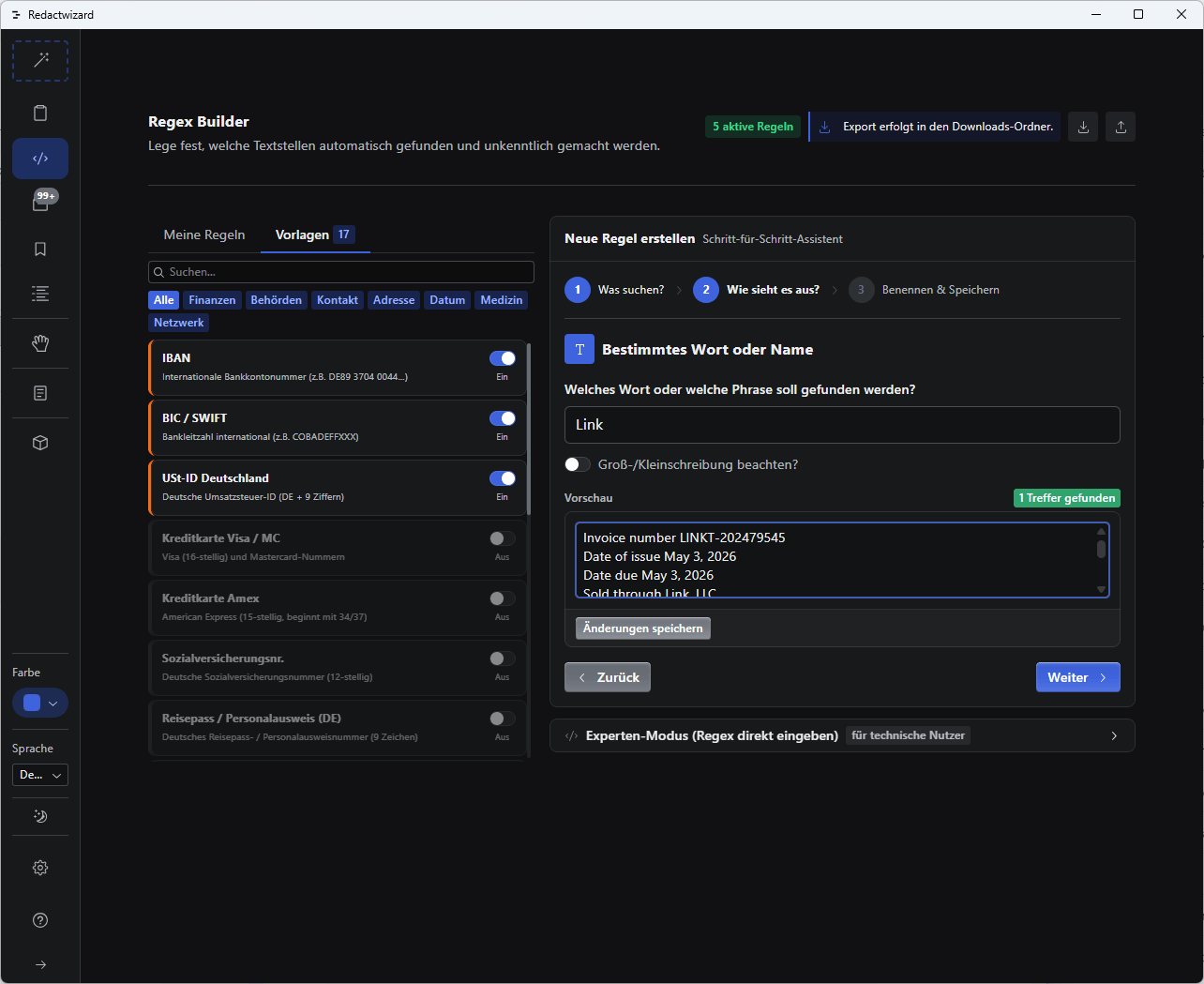
No math knowledge is required to build these rules. An intuitive wizard guides you step-by-step in 3 steps. Alternatively, if you feel confident and have experience with regular expressions, you can enter formulas directly in Expert Mode. Use the toggle below the wizard interface to switch modes.
Screenshot 78
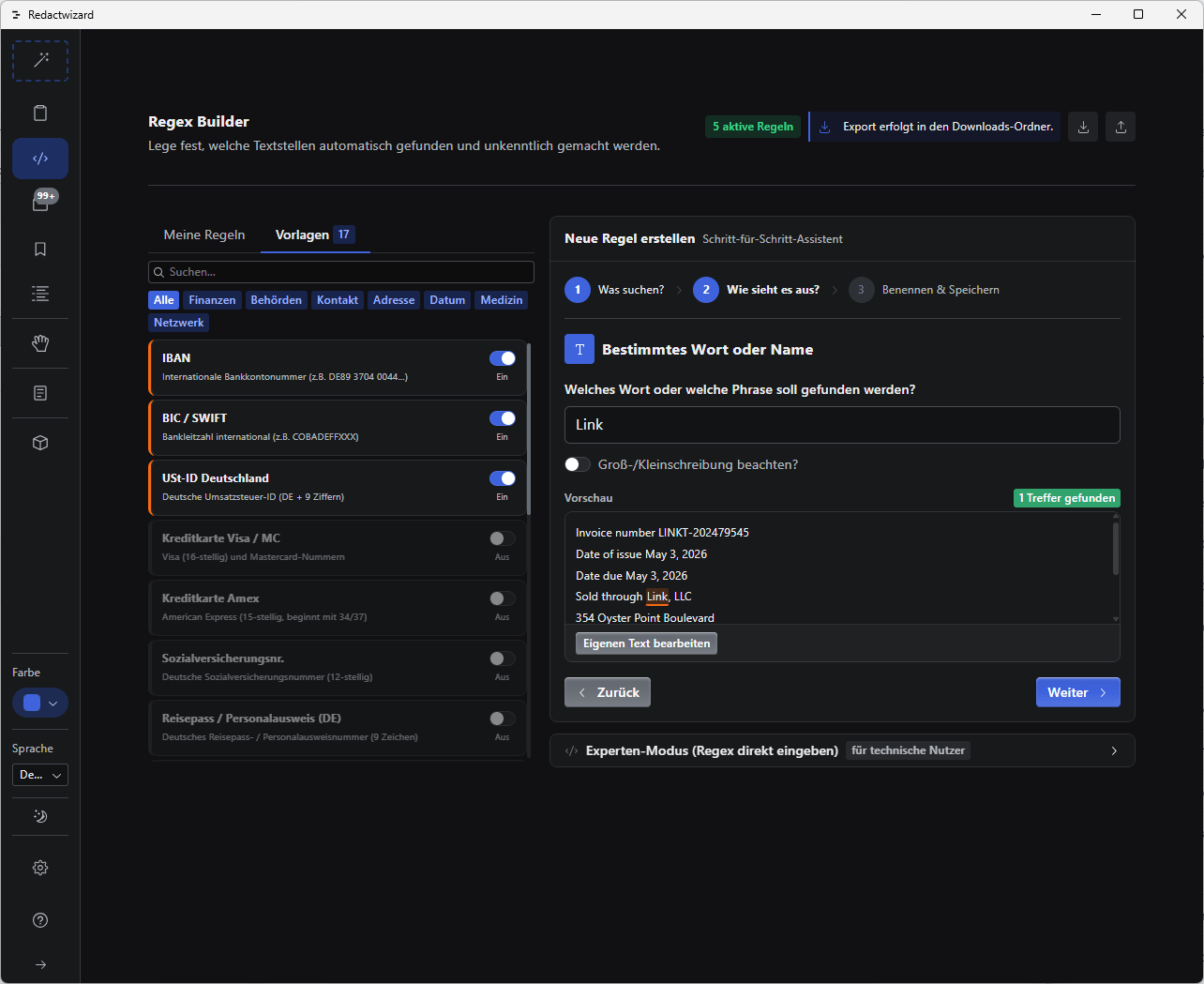
In this example, we want to mask the word "Link". In Step 2, simply type in the desired word and test it against sample text.
Screenshot 79
The target word in the test text—here "Link"—is correctly identified by our RegEx.
Screenshot 80
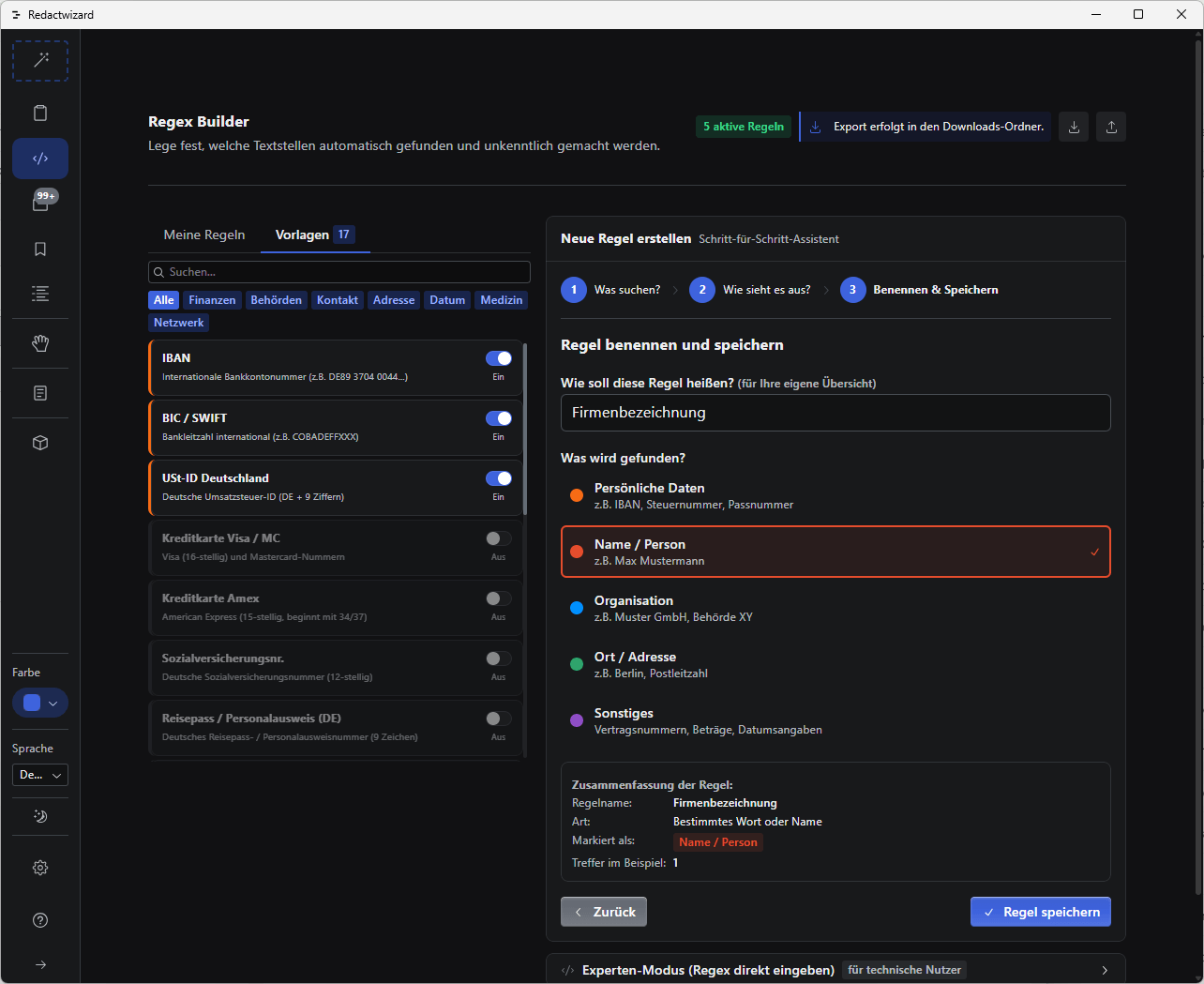
In the final step, select the type of RegEx rule and save it under a clear label.
Screenshot 81
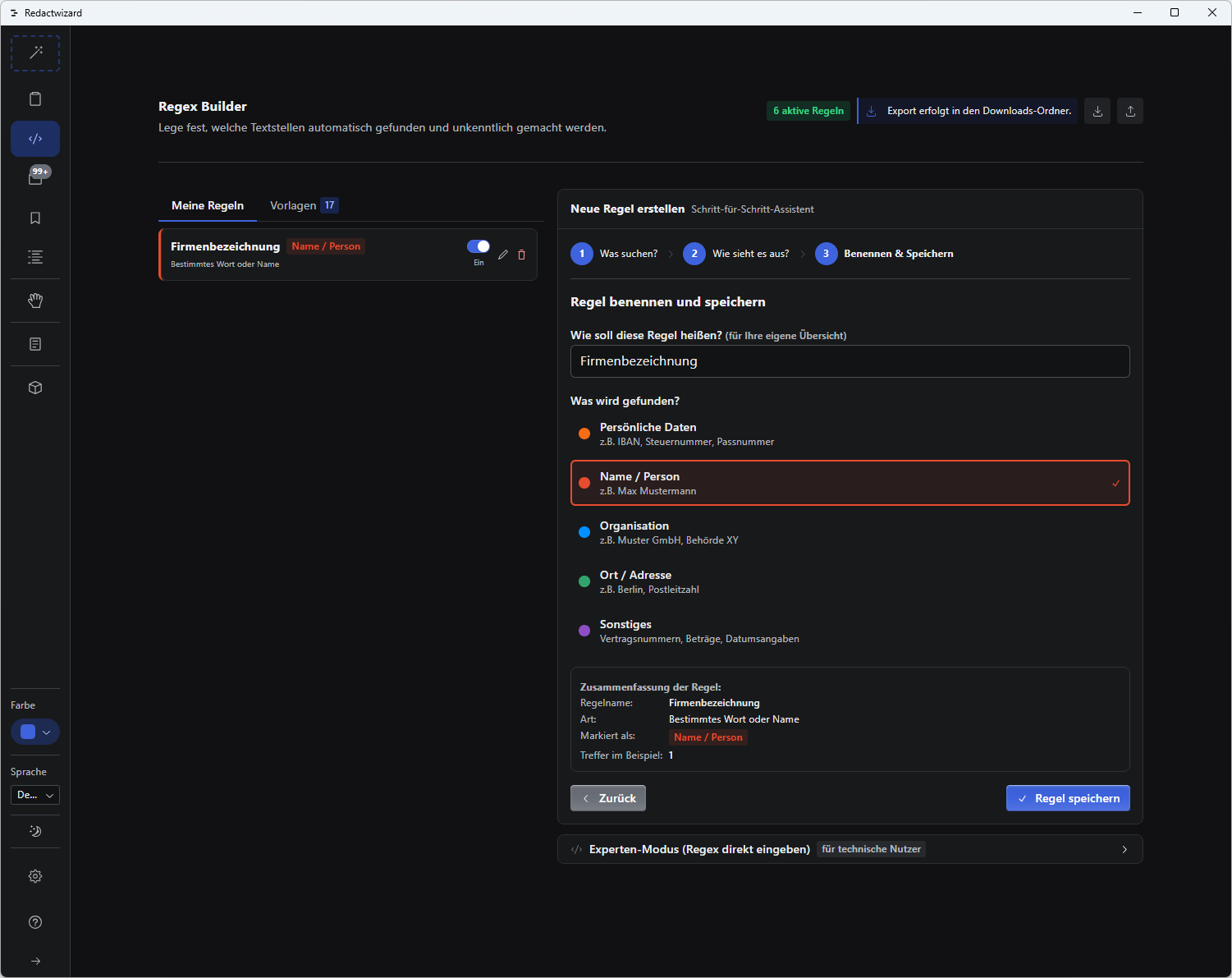
In the left column, under templates, you will now find your newly created RegEx.
Screenshot 82
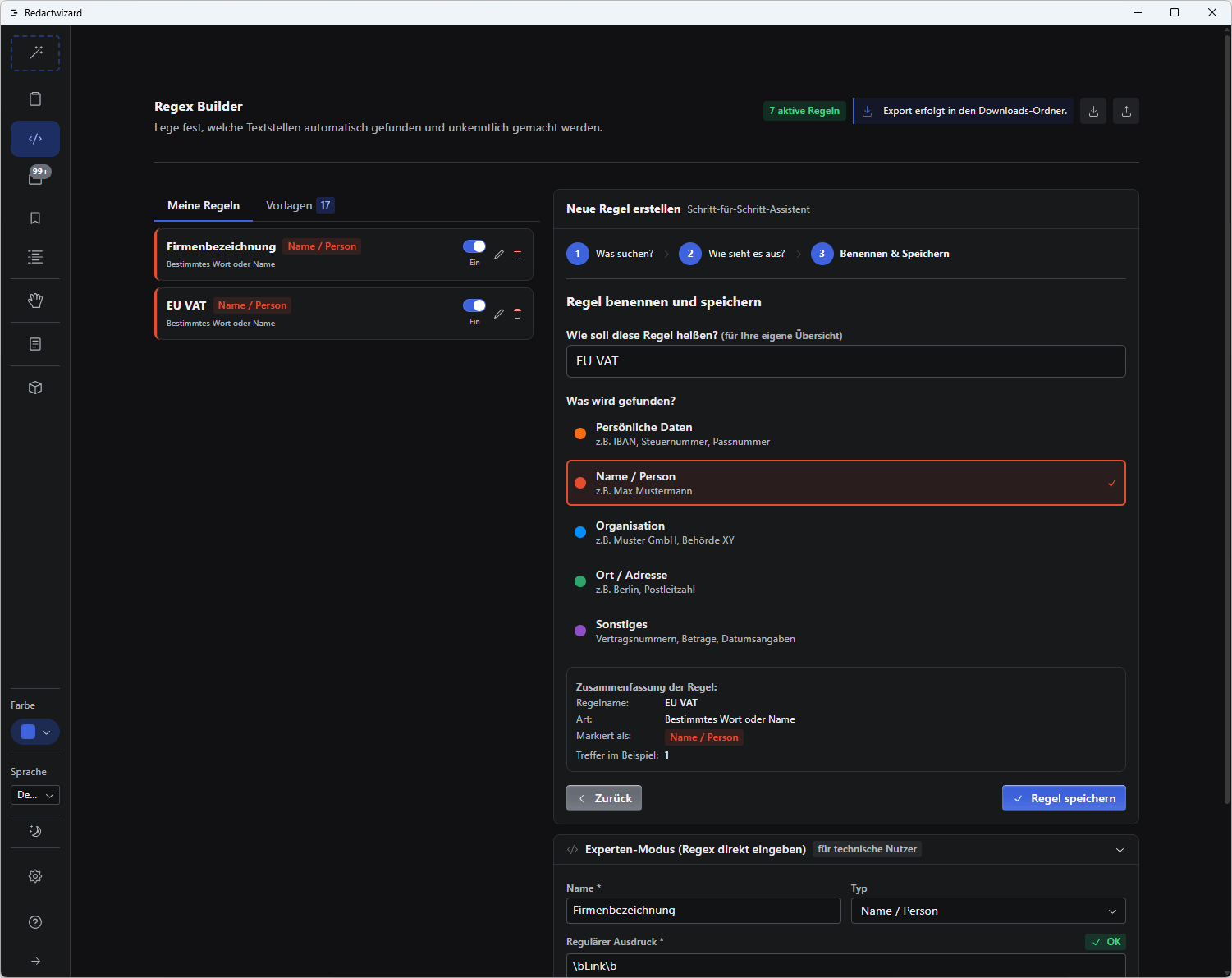
You can create as many templates as needed.
Screenshot 83
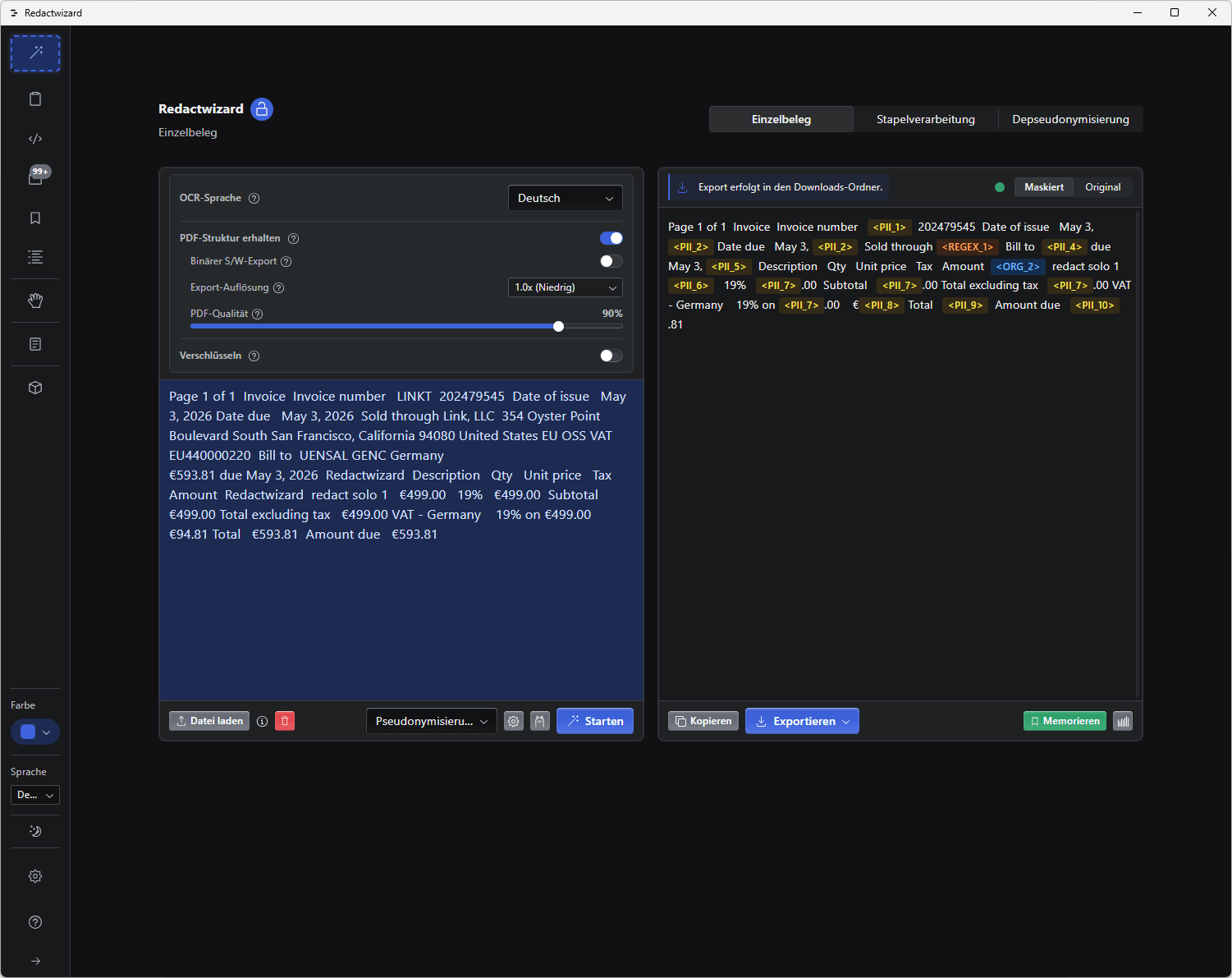
Test your RegEx with a real document. Here we see how our RegEx masked the word "Link", indicated by the orange REGEX label.

The Regex Builder is like a Swiss Army knife. You can use it to mask virtually any term that might be overlooked or incompletely masked by AI. Unlike AI models, the RegEx engine works purely on logical rules, requiring almost no processing power. Consequently, RegEx-based maskings are orders of magnitude faster than AI-driven maskings.
With the Regex Builder, Redactwizard equips you with a powerful tool that requires no coding or mathematical background, playing a leading role among document masking tools.


Text Synthesis with Llama AI
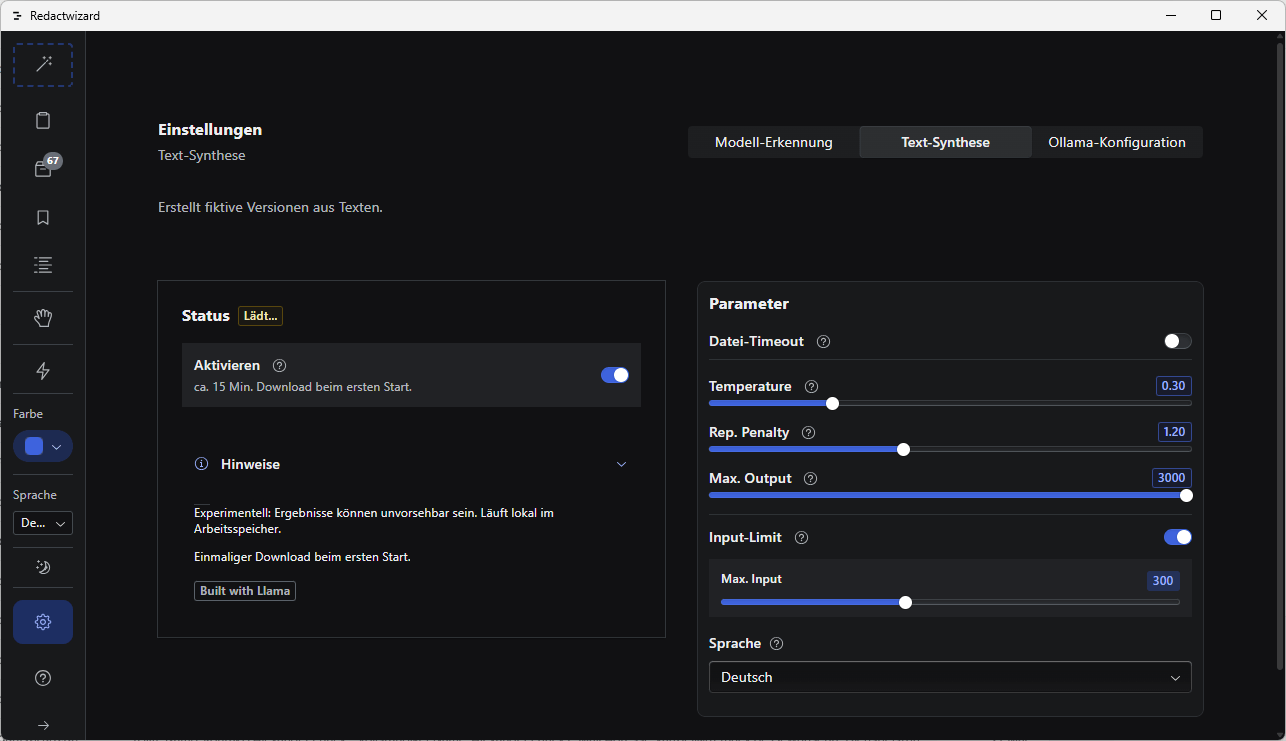
Screenshot 24
With Text Synthesis, you can rewrite documents into a fictional version. This downloads a local Meta Llama model from an online repository (an internet connection is mandatory for the initial run). Since the AI model is large, lazy downloading is required. Please note that this feature is experimental, produces unpredictable results, and is not recommended for production use. Results cannot be audited and are output as plain text. It is a free curated feature provided for personal use (e.g., rewriting emails creatively).

Ollama Integration

Supports local AI models via Ollama for offline processing and data privacy.

  • Offline processing
  • Local models
  • Privacy-focused
Screenshot 25
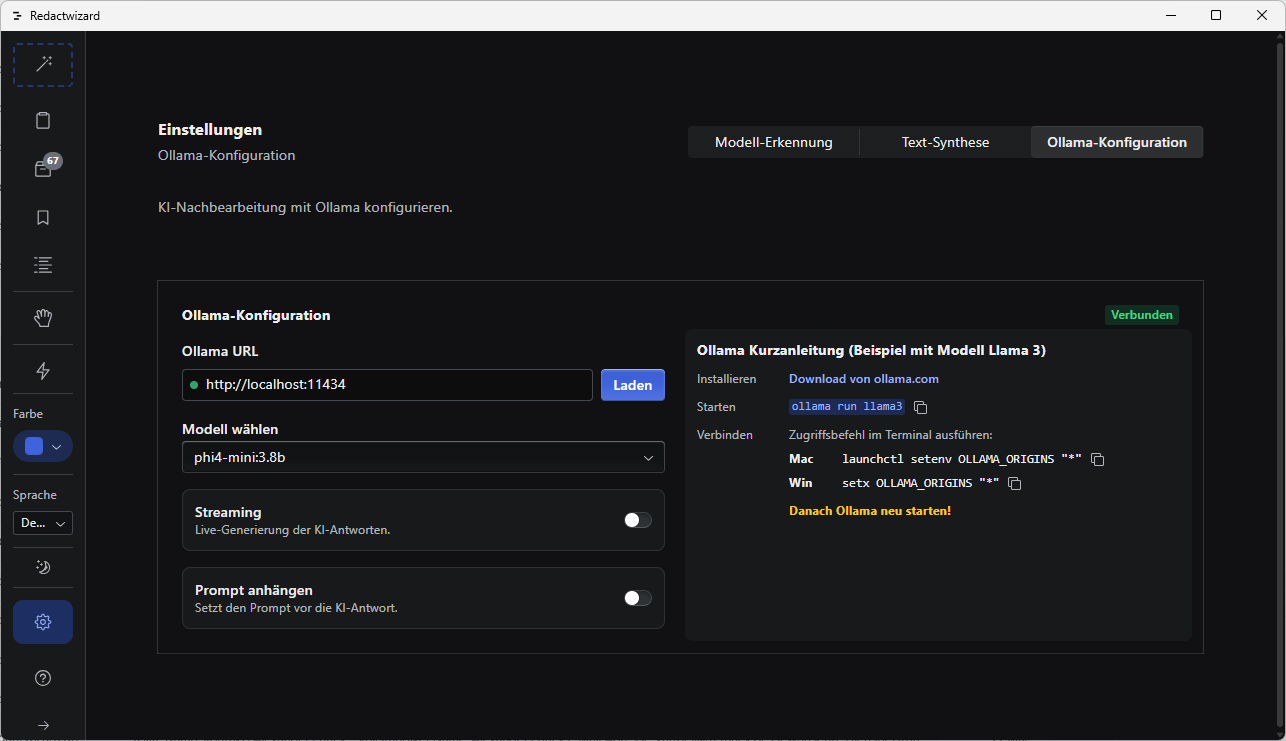
For example, to download and run Llama3, use the following command:
ollama run llama3

In the settings screen, you can configure your preferred Ollama model.
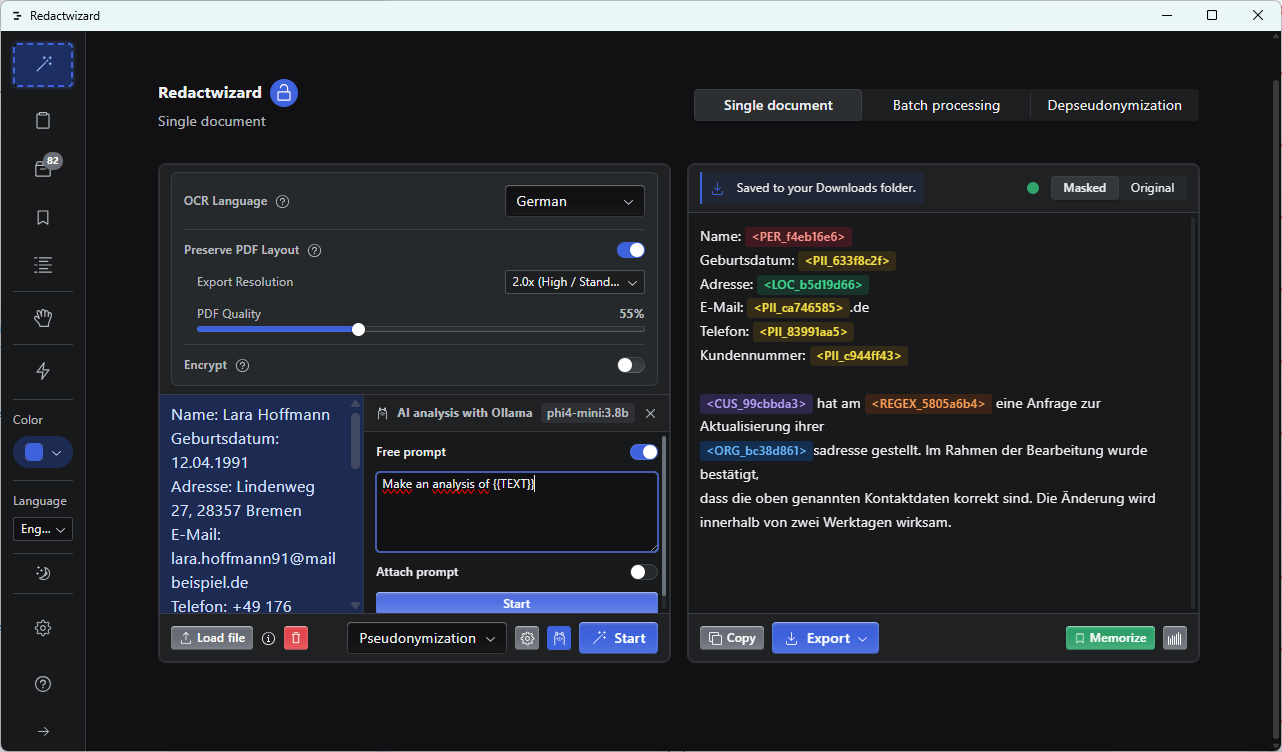
Screenshot 39
To analyze a document, pseudonymize the text first. Then click the button with the Ollama icon to open the side panel. You can select a predefined prompt or write your own. Use {{TEXT}} as a placeholder for the pseudonymized text.
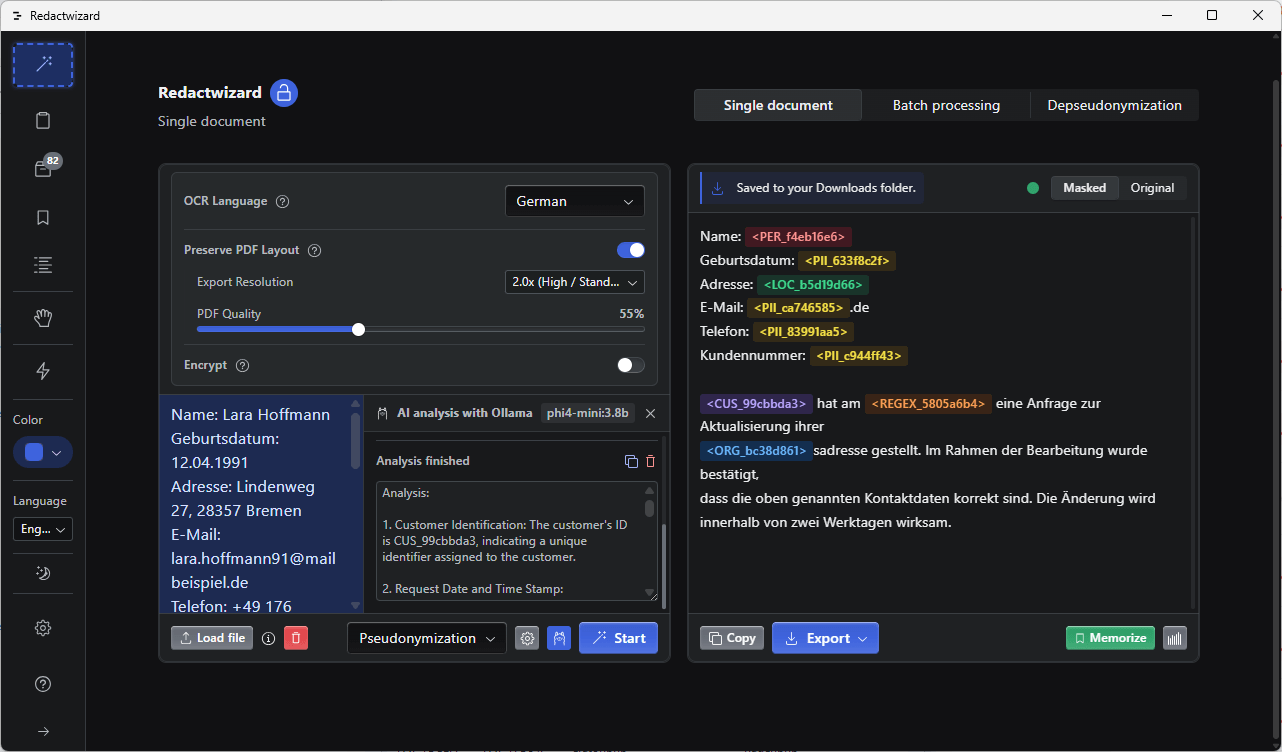
Screenshot 40
Depending on the model and text size, generation may take a moment. Results can be copied using the icon. Note: Ollama analysis is restricted to pseudonymized text and does not retain history for original data.